DICOM Attributes (Tags) Viewer
How to display DICOM attributes
Every DICOM object carries a set of attributes (also called tags or metadata) that describe the patient, the study, the acquisition device, the imaging parameters, and so on. Weasis can display these attributes in two ways — a dynamic in-layout view that follows the current image, or a detached window snapshot of a single instance.
Opening the DICOM attributes
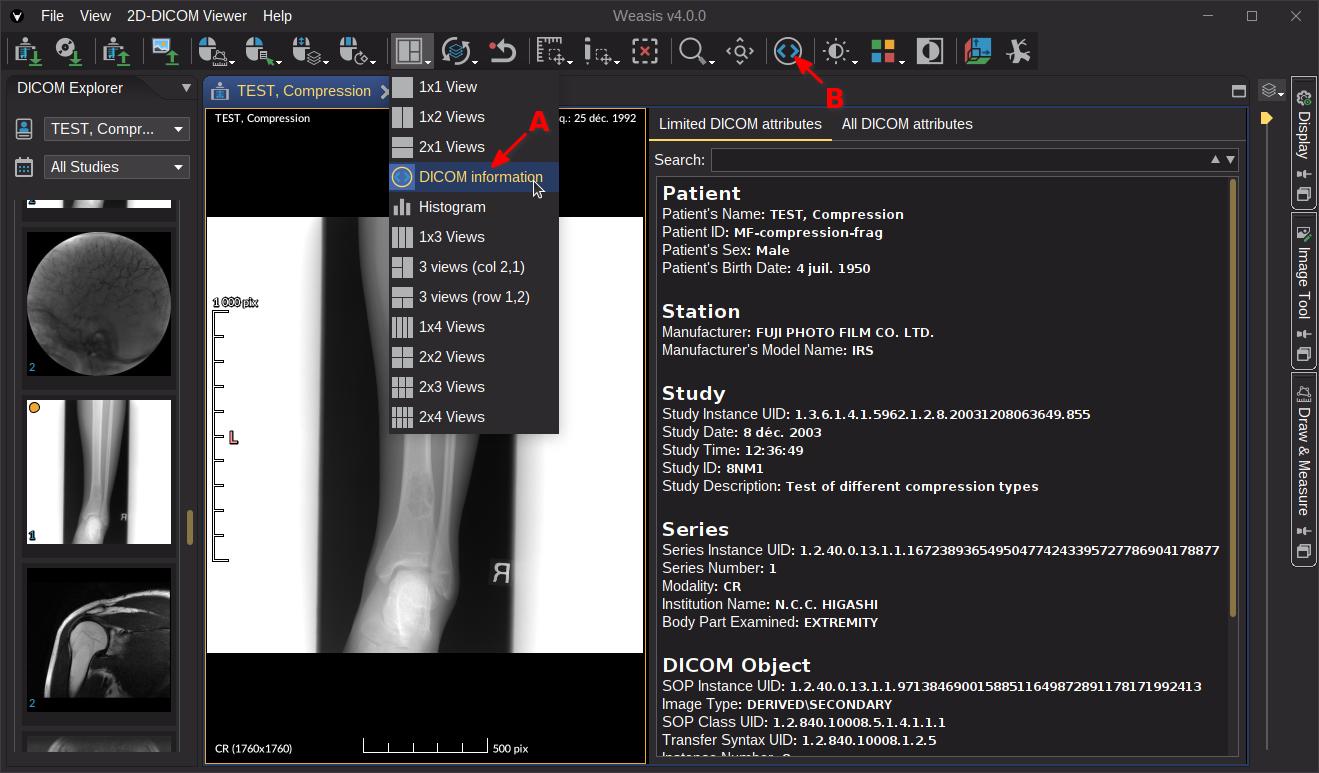
Open the DICOM attributes either by:
- selecting the DICOM Information layout from the layouts dropdown A, or
- clicking the DICOM Information button in the toolbar to open a detached window B.
Note
The two display modes behave differently when you scroll:
- In-layout view (A) — the attributes are updated dynamically and reflect the currently displayed image (useful while scrolling through a series).
- Detached window (B) — the attributes are a snapshot of the instance that was active when the window was opened. They do not update when you scroll.
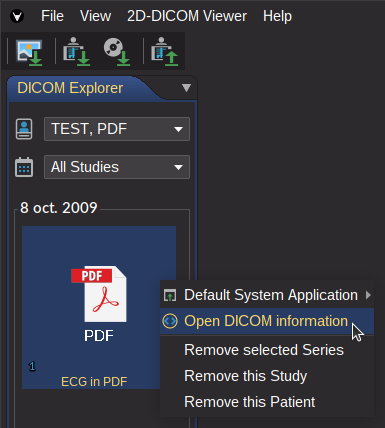
When Weasis opens certain DICOM payloads with an external application (e.g. encapsulated PDF or video), the attributes can still be inspected from the thumbnail right-click menu.
How to find a specific DICOM attribute or value
The DICOM Information window has two tabs:
- Limited DICOM attributes — the main attributes grouped by category (a curated subset for everyday use).
- All DICOM attributes — every attribute present in the file. Each data element is shown in four columns: Tag ID, VR, Tag Name, Value.
Note
When a data element holds multiple values, they are separated by a single backslash \.
Data elements whose Value Representation (VR) is one of OB, OD, OL, OF, OW, or UN — binary VRs used for pixel data, lookup tables, and other large byte streams — display binary data in place of the actual bytes.
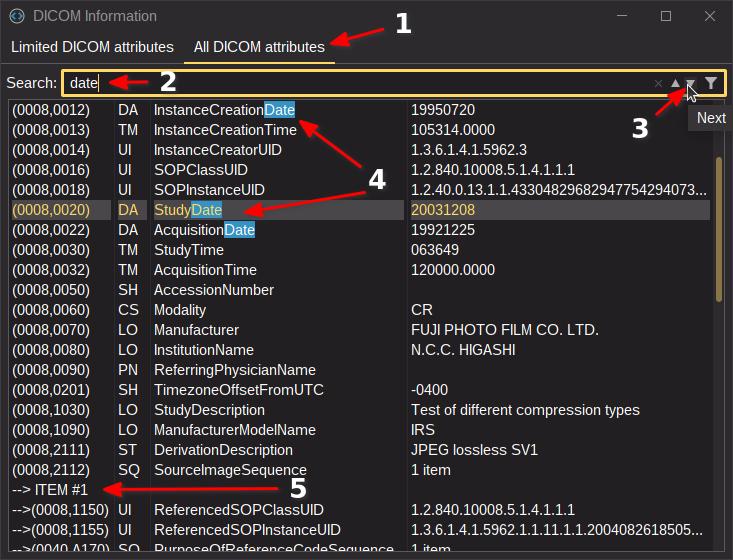
The example above searches for the word date. The procedure is:
- Switch to the All DICOM attributes tab so every attribute is searchable.
- Type the search term in the search field.
- Use the navigation arrows to jump between highlighted matches. The rightmost button filters the list to only the matching rows (instead of just highlighting them inside the full list).
Using in the toolbar applies a persistent filter on the attribute list — useful when you want to keep the focus on a specific set of attributes while scrolling through a stack of images (in-layout view A) only).
Note
Some attributes are nested inside a sequence element (marker (5) in the screenshot). The arrow on the left of a row shows the nesting depth — sequences can themselves contain sequences.
Tip
When a value is too long to fit:
- Resize the column from its header — the new width is kept until the displayed image changes.
- Hover the cell to read the full value as a tooltip since v4.3.0.
Tip
The selected DICOM attributes can be copied to the clipboard with the standard copy shortcut of your operating system. Paste into a spreadsheet, a text editor, or a bug report.