Logging and Log Files
What to read, and what to attach to a bug report
Weasis writes log files that are invaluable when something goes wrong — a series fails to load, a query times out, a third-party integration misbehaves, or the application crashes at startup. The same files are also what to attach when opening a bug report so a developer can reproduce the problem.
Accessing the log folder
Open the log folder directly from the menu: Help > Open the logging folder, available since v4.1.0.
On earlier versions: the log folder is <user.home>/.weasis/log. To find <user.home> from inside Weasis, open Help > About Weasis and look up the weasis.path property in the System Information tab.
Types of log files
Weasis writes two kinds of log files into the log folder.
Boot log (boot.log)
The boot log, available since v3.5.0, captures the application startup sequence and is always written, regardless of the rolling-log configuration. It is the right place to look for:
- whether Weasis started with the expected parameters,
- startup failures or crashes,
- configuration issues raised during launch.
Rolling log (default.log)
The rolling log captures runtime application activity — viewer events, network calls, errors during use — and must be enabled in the preferences (see Configuring the rolling log below).
Once a rolling log reaches its maximum size, it is rotated and the previous file is automatically compressed into a ZIP archive since v4.4.0.
Configuring the rolling log
- Open File > Preferences > General from the main menu.
- Enable Rolling log to activate file logging.
- Adjust the settings as needed:
| Setting | Description | Default |
|---|---|---|
| File numbers | Maximum number of rolling log files retained on disk | 20 |
| File size | Maximum size of each log file before rotation | 10 MB |
| Log level | Verbosity of trace messages (TRACE / DEBUG / INFO / WARN / ERROR) | INFO |
| Stacktrace limit | Number of stack-trace lines kept per exception | 3 |
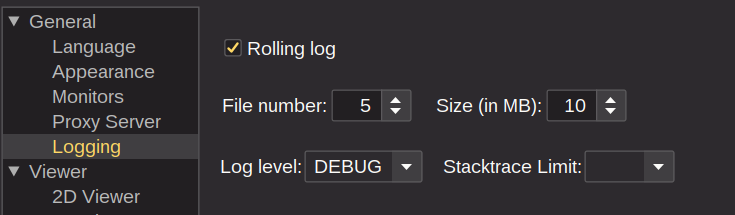
While investigating an issue, leave Stacktrace limit empty (or set it to 0) to capture the full stack — Weasis will then keep every line of every exception. Revert to a low value once the investigation is over to keep log files compact.
Understanding log levels
Pick the lowest log level you actually need:
- ERROR — only critical errors.
- WARN — warnings and errors.
- INFO (default) — general progress information, plus warnings and errors.
- DEBUG — detailed debugging information.
- TRACE — the most verbose level, used for in-depth troubleshooting.
Each level includes everything from the levels above it.
DEBUG and TRACE generate significantly more data and may impact performance — enable them only while actively investigating a problem, and switch back to INFO once done.
The default logging configuration comes from base.json. See Weasis Preferences for the property lookup order. Some default values have changed since v4.4.0.
Attaching logs to a bug report: for a clean repro, set the level to DEBUG or TRACE, restart Weasis, reproduce the issue, then attach both boot.log and the most recent default.log* files to the GitHub issue. The compressed rotated files are also useful when the bug only manifests after long use.