ViewerHub is the successor to weasis-pacs-connector. It allows to launch different viewers (such as Weasis, Ohif, 3D Slicer, MicroDicom) depending on search criteria.
This is a server component with an administration interface for managing viewers selection, preferences, plugins, and versions of Weasis with DICOM archives.
Essentially, it simplifies the management of viewers in IT environments and facilitates connections to DICOM archives.
The main features of ViewerHub are:
Viewers launch selection depending on modalities and archives
Management of Weasis user preferences
Control of launch contexts and profiles by user, group, or host
Handling of live minor version updates of Weasis at the client side
Management of Weasis translation packages
Integration with connectors for DICOM archives
Configuration of Keycloak clients and token transmission for DICOMWeb or WADO URI calls
Here is a list of pages related to ViewerHub documentation:
This page describes how to install the Imaging Hub, a Docker Compose stack for managing dcm4chee PACS, ViewerHub, and related services.
Warning
This stack is designed for development and testing purposes only. It enables debugging ViewerHub and testing integration with dcm4chee PACS. It is not suitable for production use.
Included Services
This stack comprises the following components:
dcm4chee: PACS server for storing and retrieving medical images.
ViewerHub: Manages the launch of different viewers.
MinIO: Object storage server compatible with Amazon S3 APIs.
Redis: Cache service storing manifest data for Weasis resources.
Postgres: Database backend for ViewerHub and dcm4chee.
Keycloak: Manages user authentication and access.
Config-server: Manages configuration of all services.
Eureka: Provides service discovery for stack components.
Prerequisites
Docker
Docker Compose CLI
Configurations
This stack supports multiple configurations:
Debug (local): Includes all the required stack except ViewerHub and uses local volumes.
Unsecure (unsecure): Enables HTTP and uses development-grade settings. dcm4chee and ViewerHub services have no authentication.
Secure (secure) [Not yet available]: Enables HTTPS and uses production-grade settings. dcm4chee and ViewerHub services have authentication.
Usage
Run the following commands based on the environment:
For debugging ViewerHub:
./scripts/start.sh local
And then run ViewerHub from your IDE
Minio
Minio is an open-source object storage server compatible with Amazon S3 APIs. It is used to store resources required by the different versions of Weasis.
Access the Minio console at: http://localhost:9090
Use the following credentials:
User: viewer-hub
Password: viewer-hub
Keycloak
Keycloak is an open-source identity and access management server used to authenticate users.
Access the Keycloak console at: http://localhost:8085
Use the following credentials:
User: admin
Password: admin
Dcm4chee
Dcm4chee is a PACS server that enables storing and retrieving medical images.
Access the dcm4chee console at: http://localhost:8080/dcm4chee-arc/ui2/en/study/study
For secure mode, access the dcm4chee console at: https://localhost:8443/dcm4chee-arc/ui2/en/study/study
Use the following credentials:
User: admin
Password: changeit
Viewer-Hub Gateway
ViewerHub gateway is used to handle different types of authentication in order for viewers to get authentified when requesting data from the pacs.
ViewerHub Gateway handles basic authentication and oAuth2 (client credential and authorization code flow).
You need to install Micro Dicom in your machine to use it.
You also need to add the MICRODICOM AET to the Dcm4chee pacs and to configure the Dicom server corresponding to the Dcm4chee pacs in MicroDicom (localhost:11112, aet DCM4CHEE)
Launch the below URL to launch Micro Dicom and load the dicom image stored in the Dcm4chee or Orthanc pacs:
These URLs work with the Imaging Hub stack. If you are using a different setup, you may need to adjust the URL accordingly.
For more information, refer to the Launch APIs documentation.
Connectors
This page outlines the configuration of connectors used by Viewer-Hub to connect to DICOM archives.
Model
In order to retrieve the metadata used to identify the studies to display, connectors are configured to enable connections to various PACS or VNA systems.
Three types of connectors are defined in the configuration server: DB, DICOM, and DICOM_WEB.
The global connector configuration is defined as follows:
connector:# If value is present: use the connectors specified, if not present or wrong connector ids: use all the valid connectors defined in the configdefault:# connectorId1, connectorId2# Limit the dicom-web connector when retrieving metadata at study or serie leveldicom-web-level-limit:# STUDY, SERIEconfig:connector-id:type:# Type of connector used => DB, DICOM, DICOM_WEB# ------- Search Criteria ----search-criteria:deactivated:# If a search criteria needs to be deactivated=> SOP_INSTANCE_UID, SERIE_INSTANCE_UID, STUDY_INSTANCE_UID, STUDY_ACCESSION_NUMBER, PATIENT_ID# ------- Specific parameters for Weasis manifest----weasis:manifest:transfer-syntax-uid:compressionRate:requireOnlySOPInstanceUID:# true/falseadditionnalParameters:overrideDicomTags:httpTags:
Database connector
This connector is used to connect to the PACS database in order to find the metadata of studies, series, instances to retrieve.
db-connector:user:# Database userpassword:# Encoded passworduri:# Database uridriver:# Database driverquery:select:# SQL query to retrieve patientName, patientId, patientBirthDate, patientSex, studyInstanceUid, studyDate, accessionNumber, studyId, referringPhysicianName, studyDescription, seriesInstanceUid, modality, seriesDescription, seriesNumber, sopInstanceUid, instanceNumberaccession-number-column:# Accession number column used in the SQL query abovepatient-id-column:# Patient id column used in the SQL query abovestudy-instance-uid-column:# Study instance uid column used in the SQL query aboveserie-instance-uid-column:# Serie instance uid column used in the SQL query abovesop-instance-uid-column:# Sop instance uid column used in the SQL query abovewado:authentication:... => described below in the section "Authentication configuration"
DICOM connector
This connector is used to connect to the PACS in Dicom in order to find the metadata of studies, series, instances to retrieve.
dicom-connector:dimse:calling-aet:# Calling aetaet:# Aethost:# Hostport:# Port# Specific configuration for dicom connector when using CFindtls:mode:need-client-authentication:keyStore:url:type:password:keyStorePassword:truststore:url:type:password:wado:authentication:... => described below in the section "Authentication configuration"
DICOM Web connector
This connector is used to connect to the PACS in Dicom Web in order to find the metadata of studies, series, instances to retrieve.
dicom-web-connector:qido-rs:authentication:... => described below in the section "Authentication configuration"wado-rs:authentication:... => described below in the section "Authentication configuration"
Authentication configuration
Authentication configuration is used to build the web clients for Dicom Web connectors which will get the metadata from the archive
or used to handle Weasis authentication when building the manifest in order for Weasis to retrieve the images
authentication:type:# BASIC, OAUTH2oauth2:oidc-id:# Id of the oidc configuration (defined in application-oidc.yml)server:url:# Url port:# Port context:# Context basic:login:# Basic credential login password:# Basic credential passwordserver:url:# Url port:# Port context:# Context
Launch APIs
Launch viewers from your own web application
The display service is available at the URL: http://localhost:8081/display
To launch viewers from your own web application, you need to build the URL with the following parameters:
viewer: The specific viewer used to display studies. Available viewer parameter values: “WEASIS”, “OHIF”, “SLICER”, “MICRODICOM”. If this parameter is not present in the request, viewer-hub will determine which viewer to display depending on selection rules (based on modalities and archives) defined in the admin interface of viewer-hub.
archive: The archive name to be used to retrieve the study. The list of archives is defined in the config server.
patientID: The Patient ID of the study to be displayed. Note to handle a universal patientID, add IssuerOfPatientID like in hl7: patientID=1168514^^^issuerValue
Ex with multiple patientID: http://localhost:8081/display?viewer=WEASIS&patientID=1168514&patientID=2023231696&archive=dcm4chee-local
Ex with URL encoding of separators ^^^ and IssuerOfPatientID value test: http://localhost:8081/display?viewer=WEASIS&patientID=1168514%5E%5E%5Etest&archive=dcm4chee-local
studyUID: The Study Instance UID of the study to be displayed.
Ex with multiple studies and series: http://localhost:8081/display?viewer=WEASIS&studyUID=1.3.6.1.4.1.5962.1.2.2.20031208063649.855&studyUID=1.3.6.1.4.1.5962.1.2.2.20031208063649.857&seriesUID=1.2.840.113704.1.111.4924.1273631010.17&archive=dcm4chee-local
objectUID: The SOP Instance UID of the object to be displayed.
modalitiesInStudy: Filter the studies containing the specified modalities.
Ex with only CT or XA: http://localhost:8081/display?viewer=WEASIS&patientID=1168514&modalitiesInStudy=CT,XA&archive=dcm4chee-local
containsInDescription: Filter the studies containing the specified string in the study description. Note that the search is case-insensitive and diacritic-insensitive.
Ex with only coronary or thorax: http://localhost:8081/display?viewer=WEASIS&patientID=1168514&containsInDescription=coronary,thorax&archive=dcm4chee-local
lowerDateTime: Filter the studies which are older than the specified date.
Ex CT older than 01.01.2010 12:00:00: http://localhost:8081/display?viewer=WEASIS&patientID=1168514&modalitiesInStudy=CT&lowerDateTime=2010-01-01T12:00:00Z&archive=dcm4chee-local
upperDateTime: Filter the studies which are more recent than the specified date.
Ex CT more recent than 01.01.2010 12:00:00: http://localhost:8081/display?viewer=WEASIS&patientID=1168514&modalitiesInStudy=CT&upperDateTime=2010-01-01T12:00:00Z&archive=dcm4chee-local
Note
You can restrict the types of UIDs (patientID, studyUID, accessionNumber, seriesUID, objectUID) that services can access. Refer to the “request.ids” section in the configuration file to specify which UIDs are permitted. By default, all UIDs are allowed.
Launch viewers with IHE IID profile
he Invoke Image Display Profile enables an Image Display Invoker, typically a non-image-aware system such as an EHR, PHR, or RIS, to request the display of patient studies, which are then presented by an image-aware system like an Image Display (PACS).
The display service is available at the URL: http://localhost:8081/display/IHEInvokeImageDisplay
To launch Weasis with IHE IID profile, you need to build the URL with the following parameters:
viewer: The specific viewer used to display studies. Available viewer parameter values: “WEASIS”, “OHIF”, “SLICER”, “MICRODICOM”. If this parameter is not present in the request, viewer-hub will determine which viewer to display depending on selection rules (based on modalities and archives) defined in the admin interface of viewer-hub.
archive: The archive name to be used to retrieve the study. The list of archives is defined in the config server.
requestType: The type of the request (PATIENT, STUDY)
patientID: The Patient ID of the study to be displayed. Note to handle a universal patientID, add IssuerOfPatientID like in hl7: patientID=1168514^^^issuerValue
studyUID: The Study Instance UID of the study to be displayed.
modalitiesInStudy: Filter the studies containing the specified modalities.
Ex studies containing CT or XA: http://localhost:8081/display/IHEInvokeImageDisplay?viewer=WEASIS&requestType=PATIENT&patientID=11685148&modalitiesInStudy=CT,XA
containsInDescription: Filter the studies containing the specified string in the study description. Note that the search is case-insensitive and diacritic-insensitive.
Ex studies containing coronary or thorax: http://localhost:8081/display/IHEInvokeImageDisplay?viewer=WEASIS&requestType=PATIENT&patientID=11685148&containsInDescription=coronary,thorax
lowerDateTime: Filter the studies which are older than the specified date.
Ex studies older than 01.01.2010 12:00:00: http://localhost:8081/display/IHEInvokeImageDisplay?viewer=WEASIS&requestType=PATIENT&patientID=11685148&lowerDateTime=2010-01-01T12:00:00
upperDateTime: Filter the studies which are more recent than the specified date.
Ex studies more recent than 01.01.2010 12:00:00: http://localhost:8081/display/IHEInvokeImageDisplay?viewer=WEASIS&requestType=PATIENT&patientID=11685148&lowerDateTime=2010-01-01T12:00:00
Weasis Manifest
Manifest
The manifest contains the list of exams, series, and instances to retrieve when loading images by Weasis.
The creation of the manifest occurs when a client calls ViewerHub to launch Weasis through the launch URL using the Launch APIs.
Construction
According to the search criteria of the request, ViewerHub constructs the manifest through connectors.
There are 3 types of connectors:
DB (database)
DICOM (DICOM DIMSE)
DICOM_WEB (Weasis will use DICOMWeb connector in a future release).
DB queries or DICOM calls are made to retrieve the necessary information to populate the manifest according to the search criteria.
The connectors are defined according to a model in the config server.
Cache Redis
Once the manifest built, it will be stored in a Redis cache for a defined period (TTL currently 3 minutes).
This mechanism allows multiple instances of ViewerHub, as the retrieval of the manifest by Weasis is asynchronous.
It is also useful when the user requests the visualization of the same study within the TTL period: the manifest will be retrieved directly from the Redis cache.
The key for retrieving the manifest corresponds to the hash of the search criteria.
Cryptography
When launching the Weasis viewer with ViewerHub, a URL containing search criteria in “query parameters” is used.
It is possible to encrypt these search parameters when launching the Weasis viewer in order to not transmit certain sensitive data in plain text (e.g. patient identifier).
To enable this feature, the application-cryptography.yml file in the config-server must be modified by setting the “enabled” field below to true.
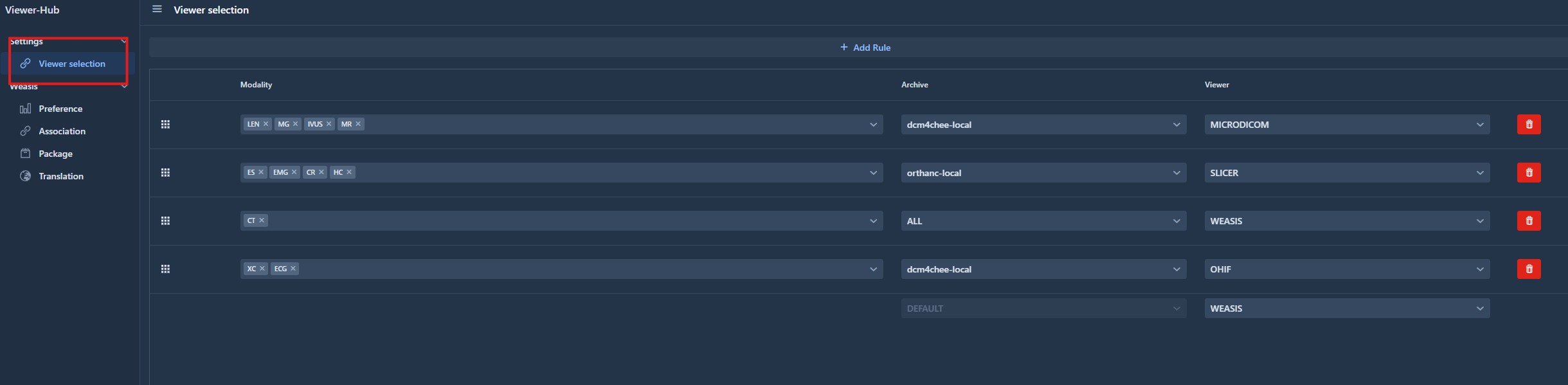
An admin interface has been created to select which viewer to display depending on the archive or modality.
Viewer selection rules
Rules can be defined in order to select the viewer to display.
These rules are applied in case no viewer has been specified in the parameters of the request.
Rules
A rule is composed of a list of modalities, an archive and a viewer to launch.
Modalities
The modalities are combined using a logical OR. In other words, the rule is triggered when at least one modality is fulfilled.
Archive
A specific archive can be defined in the rule. Otherwise the option “ALL” will match all the archives requests.
Default
When starting viewer-hub, a default rule is created.
If there is no archive in the request and no rules defined or no rules matching the request, the default rule is applied and the viewer defined in this default rule is launched.
Creation
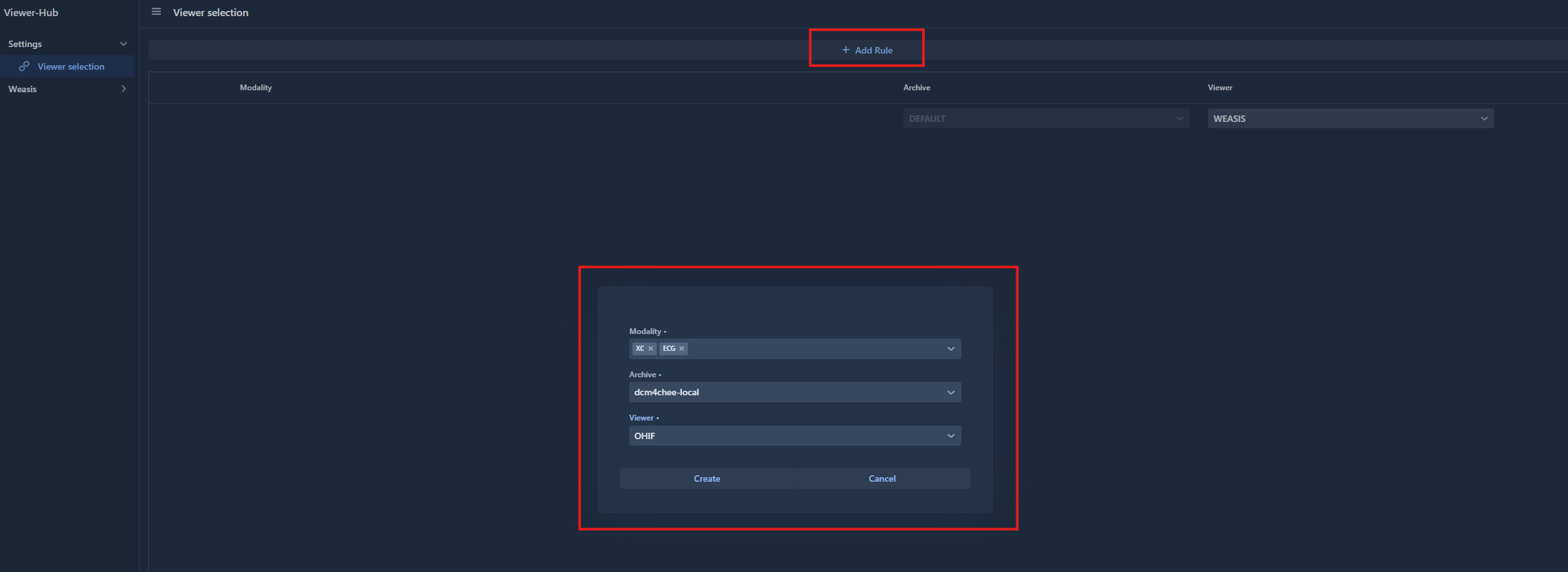
In order to add a new rule, click on the “Add rule” button
A popup will appear to configure the new rule.
Order
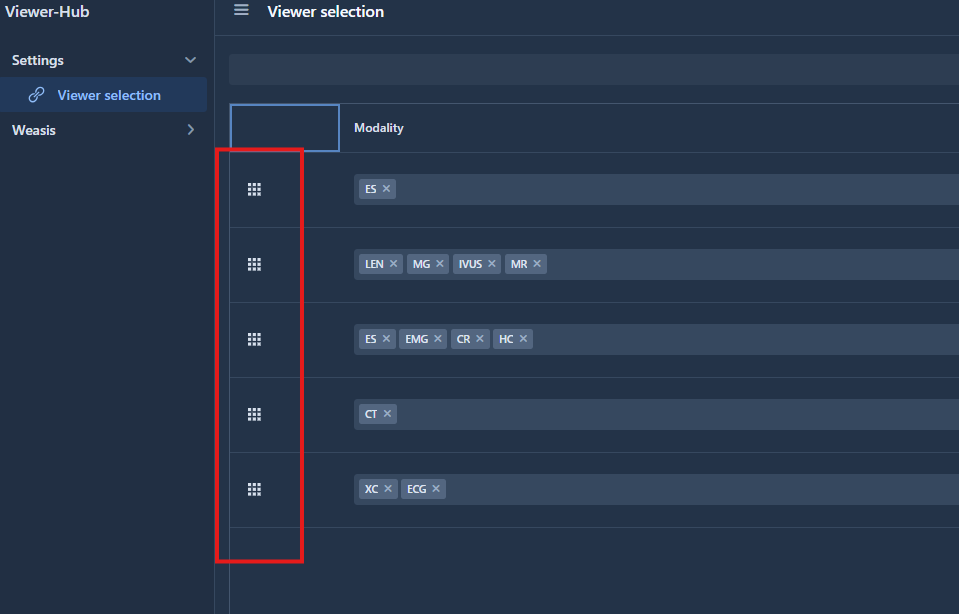
Each time a new rule is created, this rule comes to the top of the list.
It means that this rule has the highest priority and so Viewer-Hub will check that the request match this rule first.
It is possible to modify the rules order by drag and dropping the icon of the left:
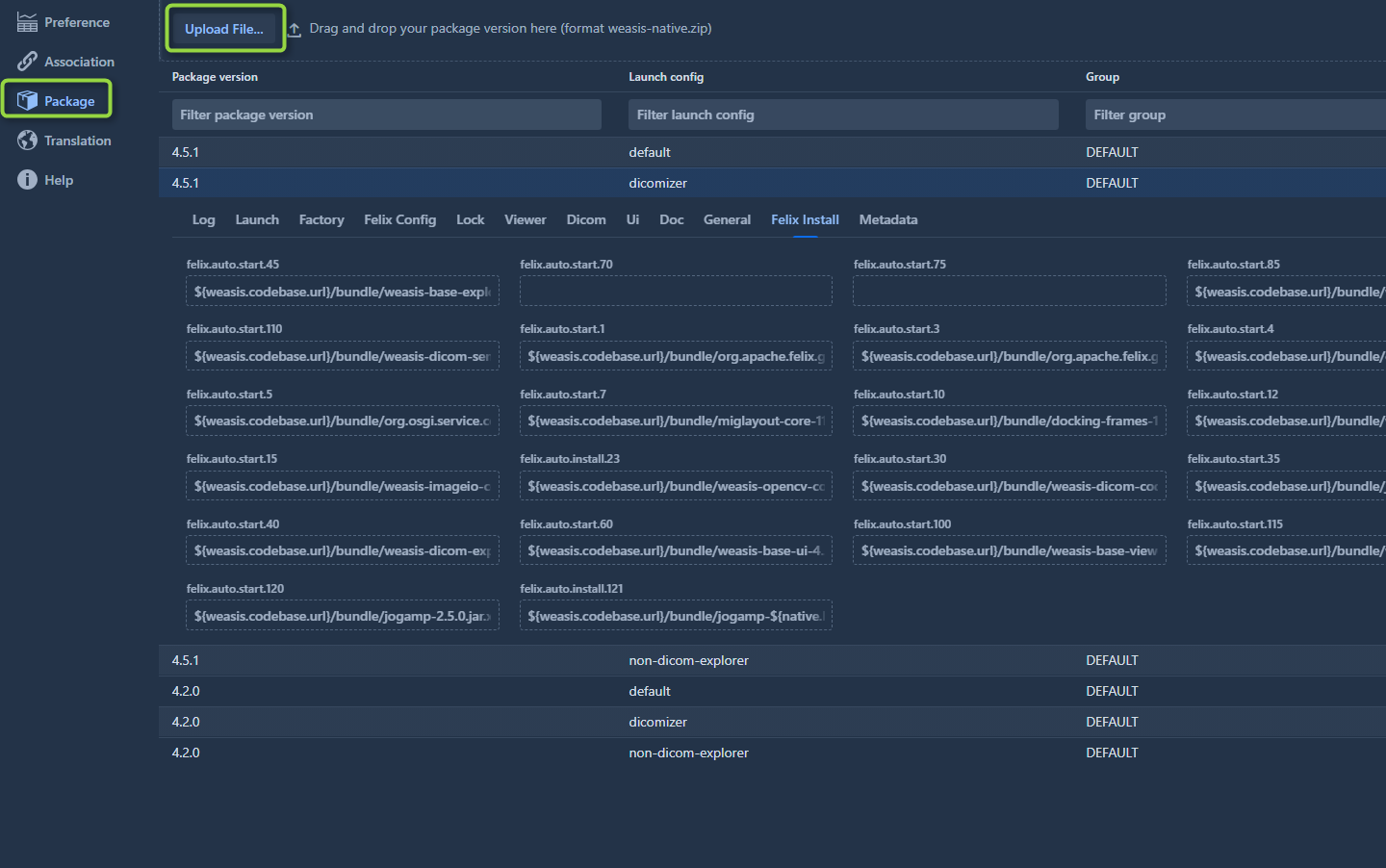
The import process of a Weasis version follows these different steps:
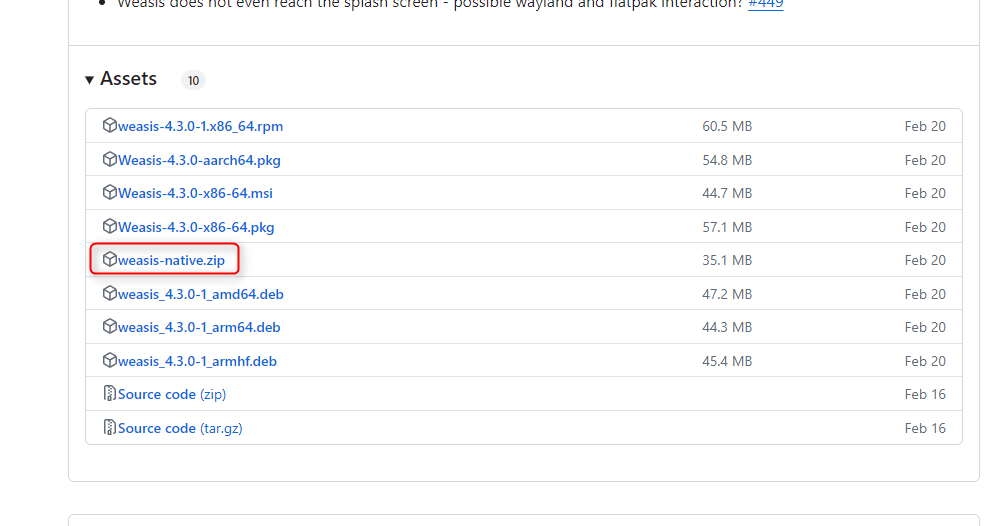
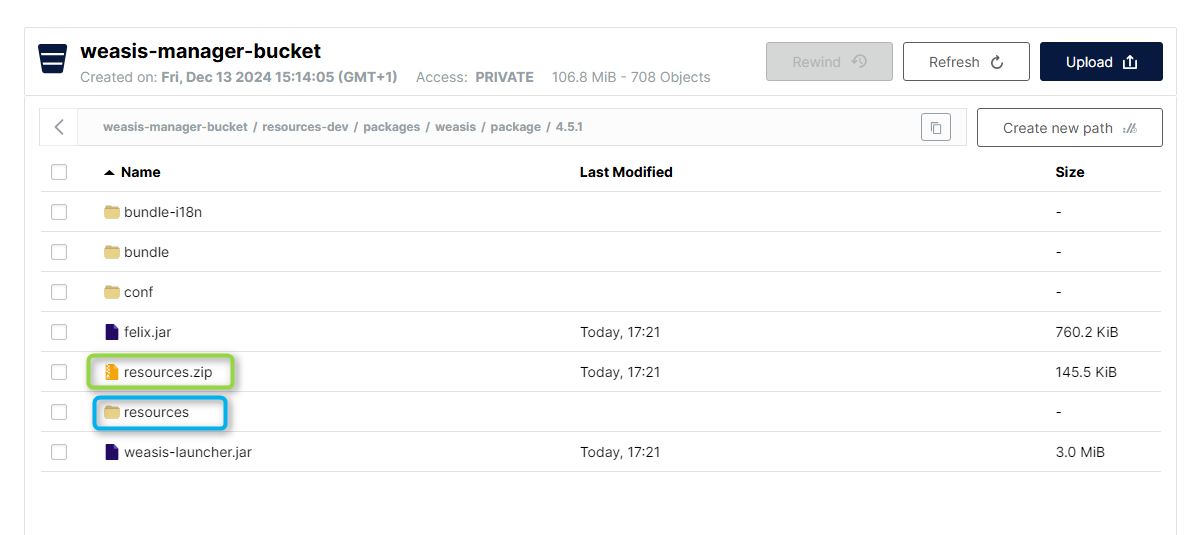
Retrieval of the “weasis-native xxx.zip” file, decompression and storage of the version’s resources/bundles in minio/S3.
Compression of the version’s “resources” folder into a zip file (necessary for Weasis) and storage on S3.
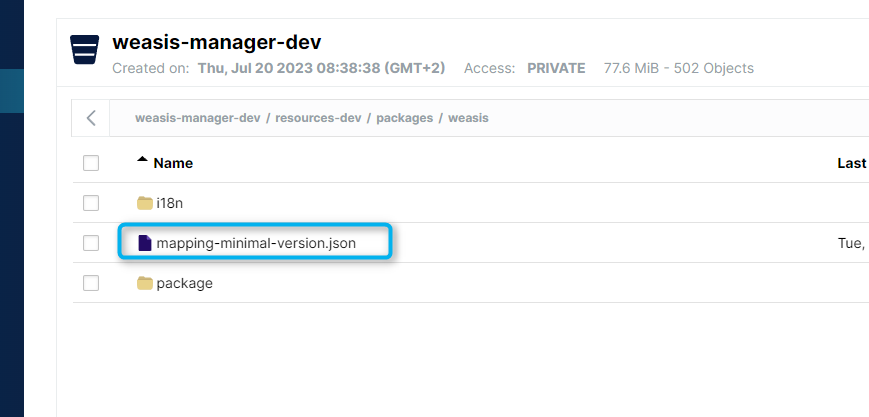
Update on S3 of the Weasis version compatibility file if the imported version is more recent.
Cache update regarding Weasis version compatibility mapping.
Loading of the version’s properties into the database.
Nexus Import
Currently not available, will be implemented later.
Remove Weasis package version
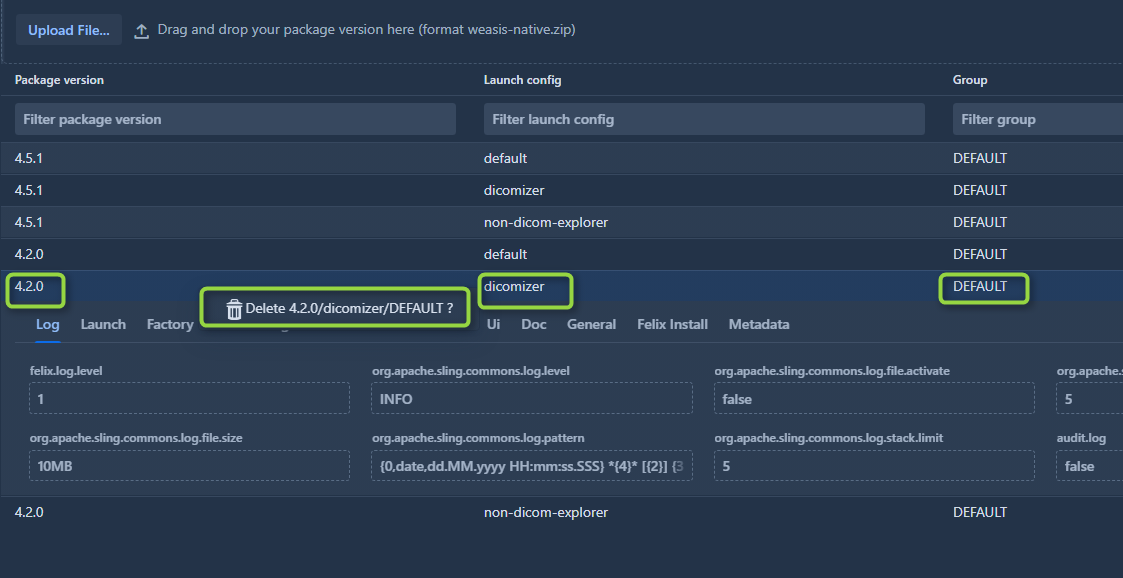
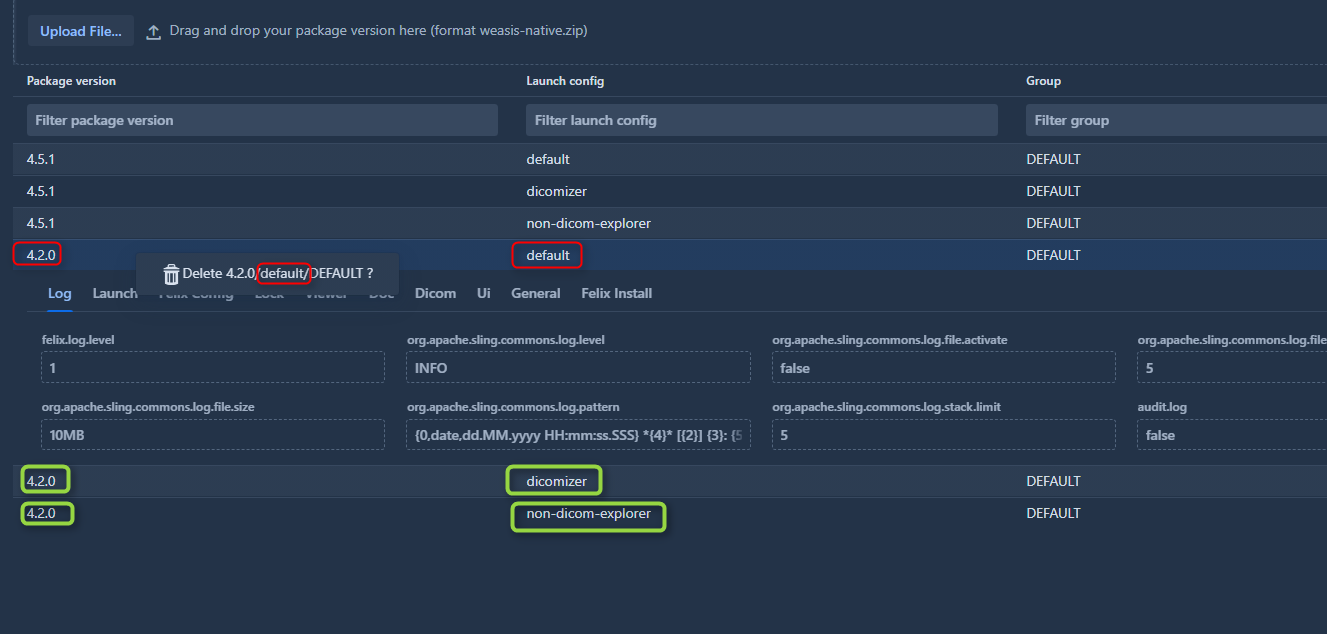
In order to delete a version of Weasis, it is necessary to select the version to delete, then right-click and confirm the deletion.
Deleting a version whose “launch config” is “default” will result in the deletion of all versions linked to this “default”.
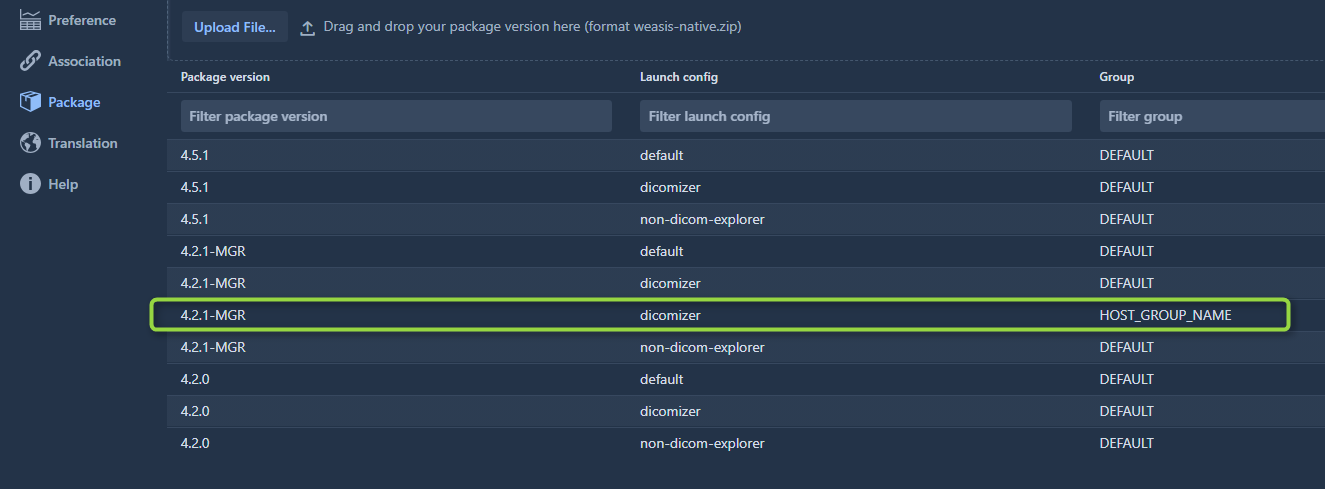
Group-specific versions
It is possible to create a version of Weasis that will only be launched for certain groups of users or hosts.
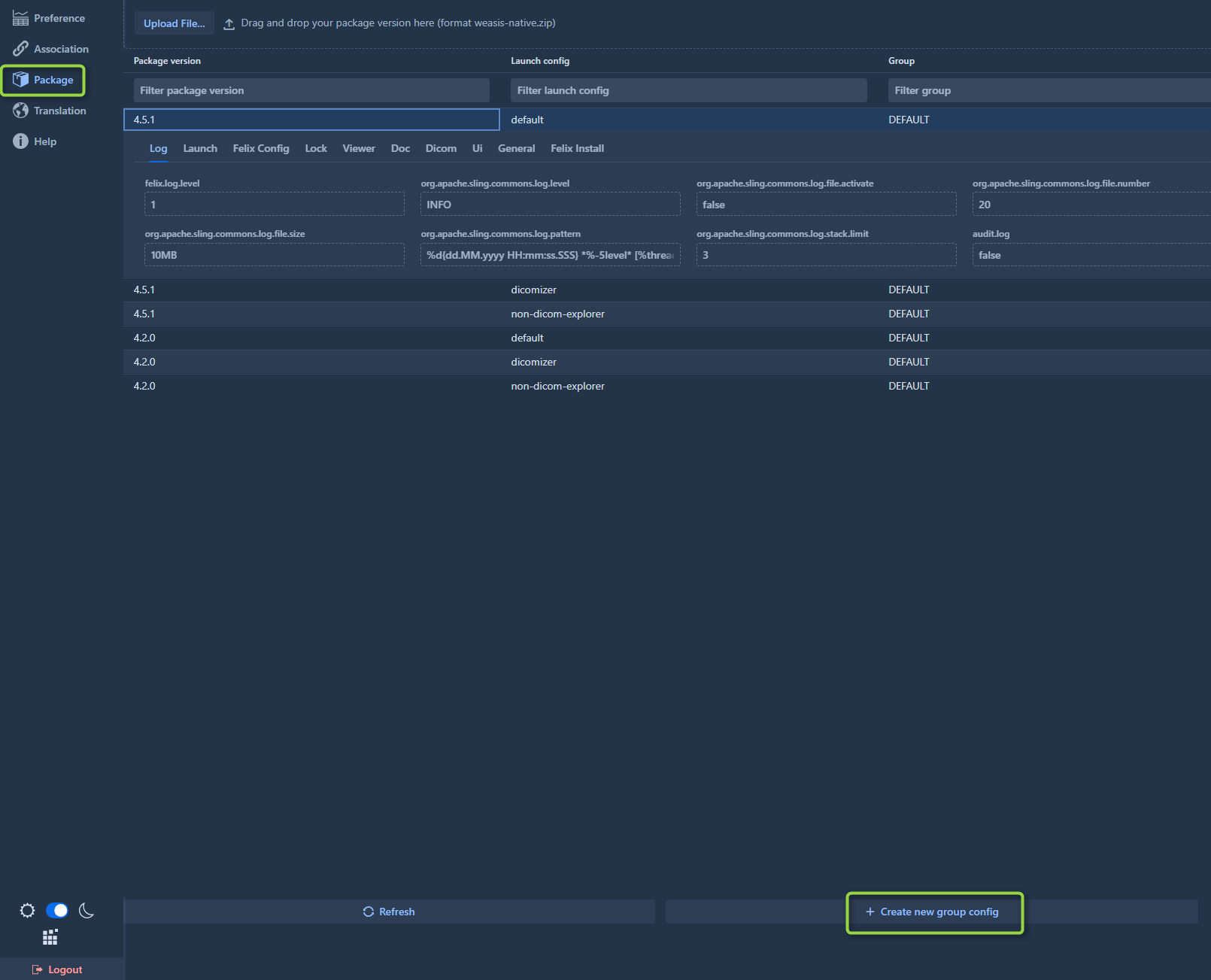
In the “package” view, click on “Create new group config”.
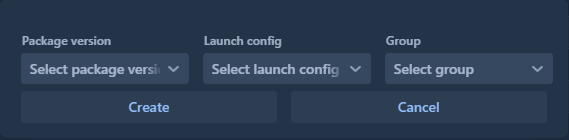
Then select the desired Weasis version (package version + launch config) and the new group to associate, then press “Create”.
The new version will thus be displayed in the list of versions already present.
If the user or host belongs to the group, the previously created configuration will be used to launch Weasis.
Configuring version properties
ViewerHub allows to modify the properties of versions on-the-fly.
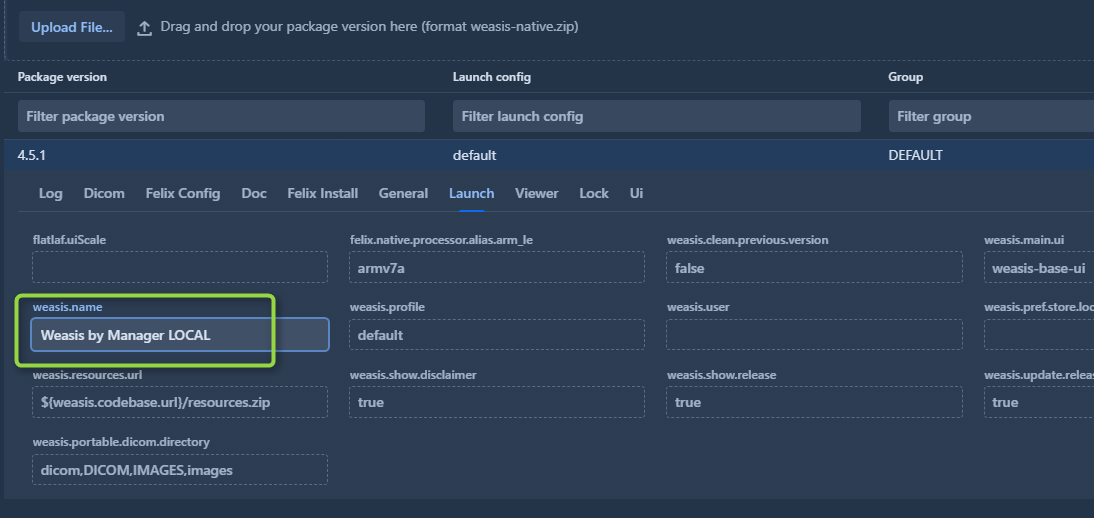
To modify a property, it is necessary to open a version and double-click on the property to modify.
For example to modify the name of the viewer for a package/launch config/group:
modification of the property “weasis.name”
launching the viewer after modification: the label corresponds to the modified property
Internationalization
Import
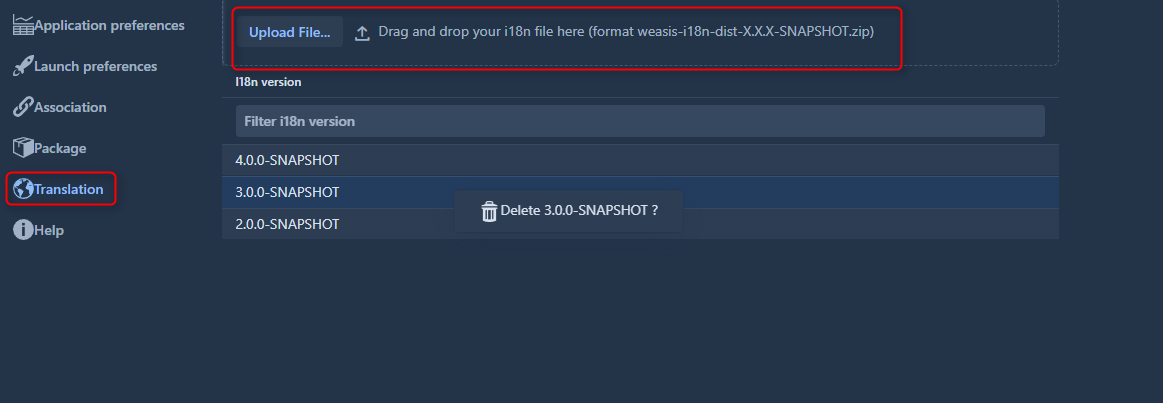
It is possible to import the translations that will be used by Weasis depending on the version of Weasis launched and the correspondence of this version with the compatibility file.
The name of the file to import must have the format “weasis-i18n-dist-X.X.X-SNAPSHOT.zip”.
In ViewerHub, management of translation packages is located in the “Translation” tab.
The import will decompress the zip file and load the translation resources into the MinIO S3.
Removal
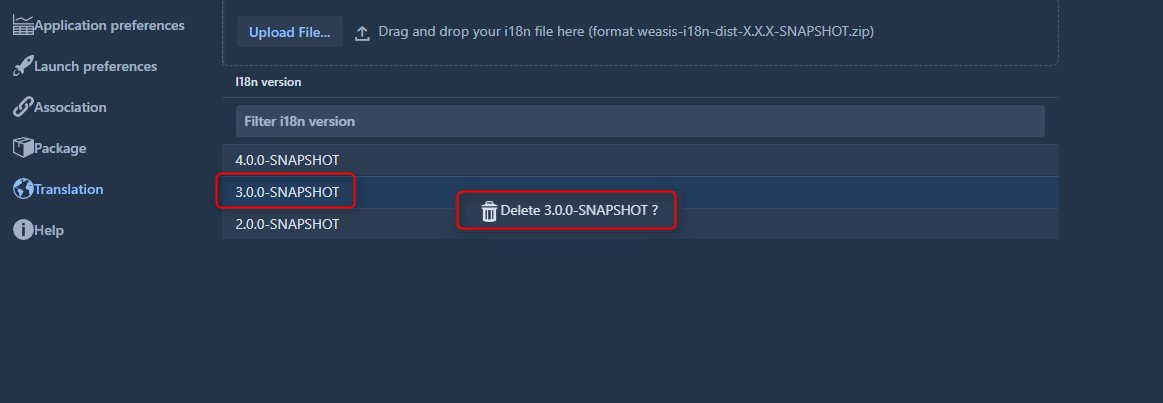
Deleting a translation version is done by selecting the version and right-clicking on this version and then confirming the deletion.
Package Qualifier
Default values
When calling the ViewerHub, Weasis will send in an Http header the version installed on the client workstation (User-Agent header).
If the corresponding Weasis version has not been installed on ViewerHub and/or when no qualifier has been associated with the user/host/group making the request, a version and/or a qualifier are used by default to retrieve the resources to launch Weasis.
These default values are defined in the config-server in the application-package.yml file.
Qualifier mapping to user/host/group
In order to be able to test specific versions or to be able to launch a version of Weasis different from the default one for a group, it is possible to specify the version to launch for a user/host/group by mapping a particular qualifier.
In order to use this feature:
the weasis-native.zip file containing the specific version must be loaded into ViewerHub and associated with a group.
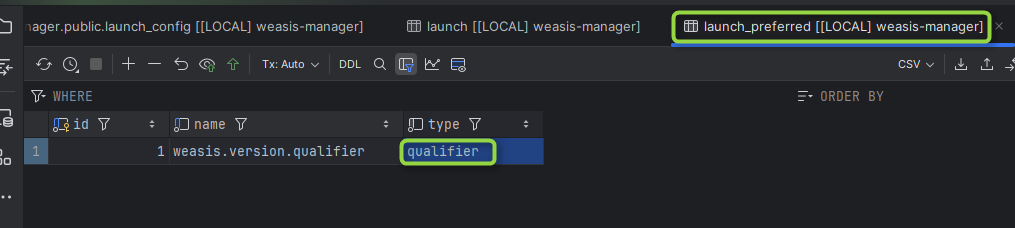
the “qualifier” property must be defined in the launch_preferred table and must be of type “qualifier”.
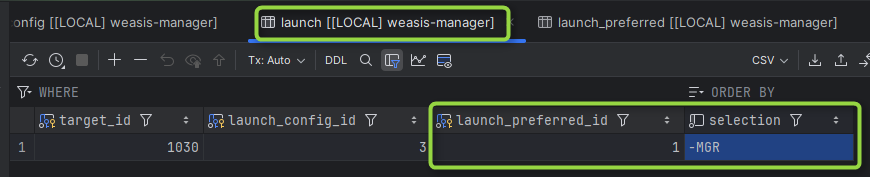
the mapping of the qualifier to use this version must be done at the launch table level for the target/launch_config/launch_preferred association.
If this mapping is not done, the default qualifier defined in ViewerHub configuration will be taken into account (see previous paragraph).
In order to do this mapping, you must define a configuration in the launch table associating the desired group/launch_config, the previous launch_preferred “qualifier” and for the “selection” column specify the qualifier to launch.
Version Compatibility
Compatibility file
A compatibility file named “version-compatibility.json” is present in each Weasis release.
This file contains the mapping between the release version (“release-version”) and the minimum version of Weasis that should be installed on the client workstation (“minimal-version”).
This file also indicates which translation version should be used (“i18n-version”).
Release Version
Minimal Version
i18n Version
3.6.0
3.6.0
2.0.0-SNAPSHOT
3.6.1
3.6.0
2.0.0-SNAPSHOT
3.6.2
3.6.0
2.0.0-SNAPSHOT
3.7.0
3.7.0
3.0.0-SNAPSHOT
3.7.1
3.7.0
3.0.0-SNAPSHOT
3.8.0
3.7.0
3.0.0-SNAPSHOT
3.8.1
3.7.0
3.0.0-SNAPSHOT
3.8.2
3.7.0
3.0.0-SNAPSHOT
4.0.0
4.0.0
3.0.0-SNAPSHOT
4.0.1
4.0.0
3.0.0-SNAPSHOT
4.0.2
4.0.0
3.0.0-SNAPSHOT
4.0.3
4.0.0
3.0.0-SNAPSHOT
4.1.0
4.1.0
4.0.0-SNAPSHOT
4.1.1
4.1.0
4.0.0-SNAPSHOT
4.1.2
4.1.0
4.0.0-SNAPSHOT
4.2.0
4.2.0
4.0.0-SNAPSHOT
4.2.1
4.2.0
4.0.0-SNAPSHOT
4.3.0
4.2.0
4.0.0-SNAPSHOT
4.4.0
4.4.0
4.0.0-SNAPSHOT
4.5.0
4.5.0
4.0.0-SNAPSHOT
4.5.1
4.5.0
4.0.0-SNAPSHOT
4.6.0
4.6.0
4.0.0-SNAPSHOT
4.6.1
4.6.0
4.0.0-SNAPSHOT
4.6.2
4.6.0
4.0.0-SNAPSHOT
4.6.3
4.6.0
4.0.0-SNAPSHOT
4.6.4
4.6.0
4.0.0-SNAPSHOT
4.6.5
4.6.0
4.0.0-SNAPSHOT
4.6.6
4.6.0
4.0.0-SNAPSHOT
4.7.0
4.7.0
4.0.0-SNAPSHOT
Cache
When uploading a new version in ViewerHub or when starting the application (in case the compatibility file is already present in the S3), ViewerHub will construct the different possible combinations from the compatibility file between the versions installed in ViewerHub and the Weasis releases.
These combinations will be stored in a redis cache. This cache is currently refreshed every 24 hours.
So when a client launches Weasis via ViewerHub, it will directly know which version, i18n, resources to use when launching Weasis on the user computer.
Minio/S3
By importing a new version of Weasis into ViewerHub, if the compatibility file is more recent, ViewerHub will replace the compatibility file present on the S3.
This compatibility file will be renamed in the S3 bucket “mapping-minimal-version.json”
In order to compare if this mapping file is more recent, ViewerHub will compare the version number of the latest release.
Groups
To easily manage your computer network, ViewerHub allows the creation and association of user or host groups.
Creation
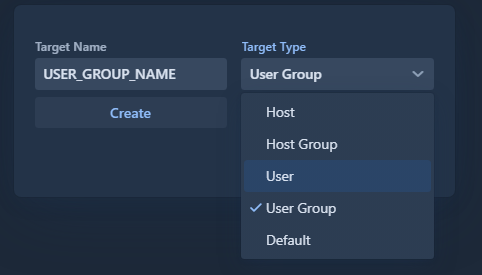
Users, hosts, user groups and host groups are represented by ‘targets’.
There are 4 types of target:
user
host
user group
host group
To create a target, go to the ‘association’ menu and define the type of target to be created.
Group association
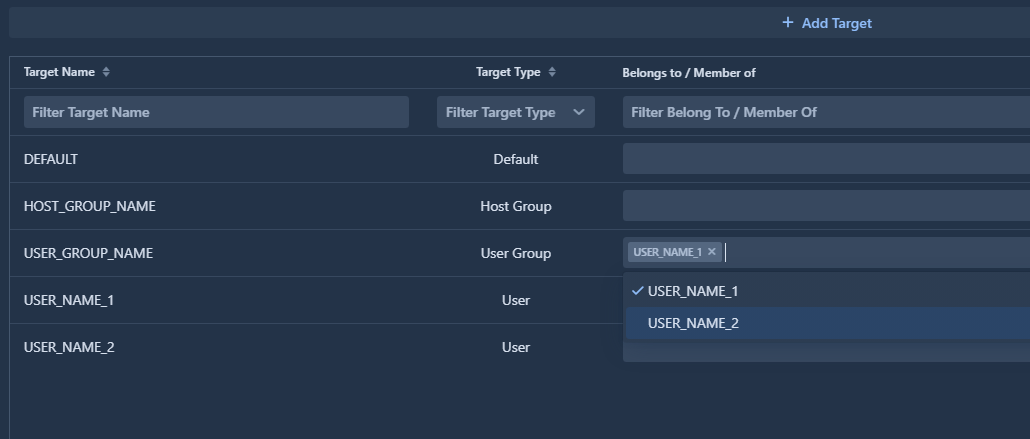
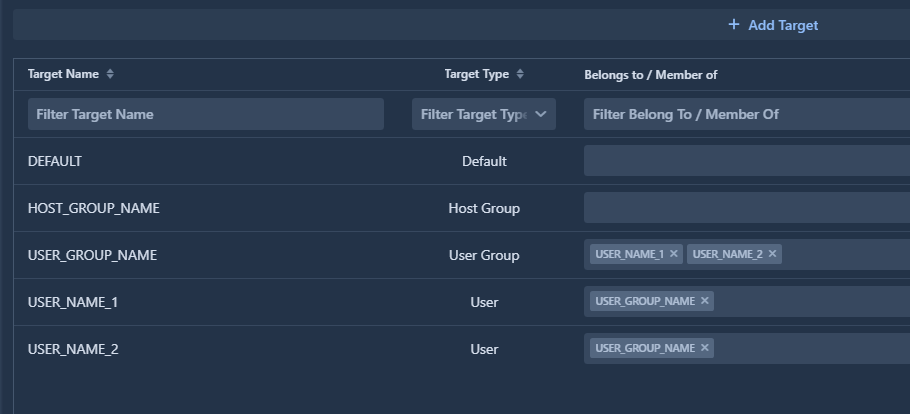
To associate a target with a group or a host/user, look for the desired target in the target name section and add the group or host/user in the ‘Belongs to/Member of’ section.
It is possible to associate several users with a user group and several hosts with a host group.
It is not possible to mix up the association between a user and a host group or a host in a user group.