Launch Weasis
Demo: Multiple DICOM Samples
This page collects a curated set of DICOM samples designed to exercise the rendering pipeline, the input formats, and the headline features of the Weasis DICOM viewer. Each sample loads in one click and is annotated with the test it is meant to demonstrate, along with the expected viewer behavior.
The datasets are sourced mainly from the DICOM standard repository and the publication DICOM Image Display Consistency: A Test Environment.
Tip
Sample naming conventions
- Patient Name — begins with
TEST^, followed by the general test purpose. ATEST-i18n-prefix indicates an internationalization test. - Study Description — describes the overall test focus.
- Series Description — details the specific test purpose of that series.
How to launch Weasis
To view a DICOM sample, make sure you have installed the latest version of Weasis.
Tip
Clicking a Launch button opens Weasis and displays the sample. If Weasis is already running, the dataset loads in a new tab.
DICOM testing categories and samples
The samples below exercise specific parts of the DICOM standard and the Weasis rendering pipeline. Click Launch to load a dataset.
- Internationalized Characters
- Pixel Depth (9-bit to 16-bit)
- Compression Tests
- Photometric Interpretation
- Pixel Spacing
- Pixel Padding Value
- Non-Square Pixels
- Overlay
- Modality LUT
- VOI LUT
- Combined LUT
- DICOM Shutter
- DICOM PDF
- DICOM Video
- DICOM Audio (AU)
- DICOM Floating-Point Pixel Data
- DICOM Structured Report (SR)
- DICOM Presentation State (PR, GSPS)
- DICOM Key Object Selection (KO)
Internationalized Characters
Test international character sets in patient and study identifiers.
Info
Expected output:
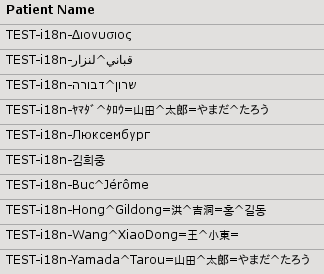
Pixel Depth (9-bit to 16-bit)
Verify that images render identically regardless of the underlying pixel depth (signed or unsigned, 9 to 16 bits per sample).
Info
Expected output: images render identically regardless of the pixel depth.
- Unsigned Data
- Signed Data
Compression Tests
Exercise the decoder against the main DICOM transfer syntaxes and fragmentation scenarios.
- Different compression syntaxes (JPEG, JPEG-Lossless, JPEG-LS, J2K, RLE)
- Compression with fragments (the encoded pixel-data stream is split into several fragments, see DICOM Part 5)
- Compression + multi-frame + fragments combined
Photometric Interpretation
Test multiple photometric interpretations (color models, monochrome, and palette color).
Pixel Spacing
Test the pixel spacing on different modalities by measuring the distance between known landmarks. See also Spatial Calibration.
Info
Select the view and press D (default — see Keyboard Shortcuts to customize) to draw a line and measure the distance. Follow the on-image procedure that lists the acceptable pixel-spacing range.
Pixel Padding Value
Test the pixel padding value and its effect on the image.
Info
Toggle padding from the Display right-side panel. When padding is enabled, the marked pixel values are excluded from rendering.
Non-Square Pixels
Test images with non-square pixels to verify correct stretching.
Info
The viewer should stretch or shrink the image according to the Pixel Spacing or Pixel Aspect Ratio tag.
Overlay
Test the rendering of DICOM overlays on top of the image.
Info
Show or hide overlays from the Display right-side panel.
Modality LUT
Test the Modality LUT and its effect on image rendering. See also Lookup Tables (LUT).
Info
Expected output: every variant should render the same image.
VOI LUT
Test the VOI LUT and its effect on image rendering. See also Lookup Tables (LUT).
Info
VOI LUT settings can be adjusted in the Image Tools right-side panel.
Combined LUT
Test the combined effect of Modality LUT, VOI LUT, and Presentation LUT on image rendering. See Lookup Tables (LUT).
Info
Expected output: identical rendering regardless of which LUT combination is applied.
DICOM Shutter
Test DICOM shutters and their effect on image rendering.
Info
Show or hide shutters from the Display right-side panel.
DICOM PDF
Test the handling of DICOM-encapsulated PDF files.
Info
Opens with the default PDF viewer of the operating system.
DICOM Video
Test the rendering of DICOM video files with different transfer syntaxes.
Info
Opens with the default viewer associated with the video MIME type. On Windows, this is Windows Media Player, which does not ship with an MPEG-2 codec by default — install VLC or another video player if playback fails.
DICOM Audio (AU)
Test the handling of DICOM audio files. See also DICOM Audio Player.
Info
Plays audio with the embedded Java Audio Player.
DICOM Floating-Point Pixel Data
Test DICOM pixel data carrying float or double values (used by parametric maps, AI probability maps, perfusion / diffusion maps).
Info
Expected output: the float / double pixel values are supported by the Window / Level tools.
DICOM Structured Report (SR)
Test the rendering of DICOM Structured Reports. See also DICOM SR Viewer.
Info
Structured reports are formatted hierarchically following the SR tag order. Links to images and associated graphics are clickable.
DICOM Presentation State (PR, GSPS)
Test the rendering of various DICOM Presentation States.
Info
Click the icon at the top-right of the image to select a Presentation State to apply. See How to build DICOM PR.
- Shutter Test
- Text Annotation
- Displayed Area
- Modality LUT PState
- VOI LUT PState
- Presentation LUT PState
- Combined LUT PState
- Spatial Transformation
- Overlay
- Graphics Annotation
- Complex Combination
- GE RA600 Test of CPI GSPS
Note
This sample is produced by a GE workstation and contains some proprietary items, so not every PR can be applied.
DICOM Key Object Selection (KO)
Test the rendering of DICOM Key Object Selections.
Info
Click the icon at the right of the image to select a Key Object Selection. See How to build and export DICOM KO.