
This page describes a feature that does not exist in the Weasis version selected in the sidebar.
Capture: Screenshots, Animations and Recordings
A still, an animation, or a recording of the viewer
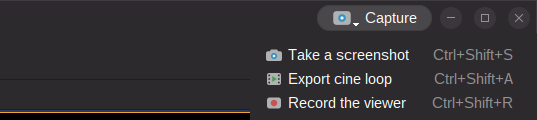
The Capture button, at the right end of the menu bar, gathers everything that turns the screen into a file:
- a screenshot of the selected view, the whole layout or the application window — the Exporting view dialog of earlier versions;
- an animation: the frames of a cine loop in the 2D viewer, or a rotation of the volume in the 3D viewer, written as an animated GIF, an APNG or a DICOM multi-frame object;
- a recording of the viewer, the layout or the whole window while you work, for a tutorial, a bug report or a presentation.
The same entries are in the main menu File > Export, with the keyboard shortcuts Ctrl + Shift + S (screenshot), Ctrl + Shift + A (animation) and Ctrl + Shift + R (recording) — Cmd instead of Ctrl on macOS, and all three can be changed in the keyboard shortcuts preferences.
The button acts on the selected viewer: with a 2D view it offers Take a screenshot, Export cine loop when the series has more than one frame, and Record the viewer; with a 3D view, once the volume is loaded, Take a screenshot, Export rotation and Record the viewer. With no viewer open it only says No viewer selected.
Every capture carries the patient identity shown on screen, unless you choose otherwise with the Identity list of the dialog — see Identity masking.
In every capture dialog, the button before the action buttons opens the section of this page that describes the dialog.
Screenshot
Take a screenshot saves a picture file (PNG, TIFF, JPG, JPEG 2000, JPEG XL) or copies it to the clipboard. The Capture list at the top of the dialog chooses what the picture contains, as in the animation and recording dialogs:
- Selected view — the view as displayed with its annotations, or its original image; these options are described in Export the selected view.
- Whole layout — all the views of the tab, as displayed.
- Application window — the whole window, toolbars, explorer and panels included.
For the layout and the window, Save and Clipboard first close the dialog, so that neither the dialog nor the shade behind it appears in the picture.
With a DICOM image, the Identity list applies to whatever is captured as displayed — the view, the layout or the window — but not to the original image, which carries no overlay.
The proposed file name is screenshot followed by the date and time, for instance screenshot_20261023-083012.
Export a cine loop
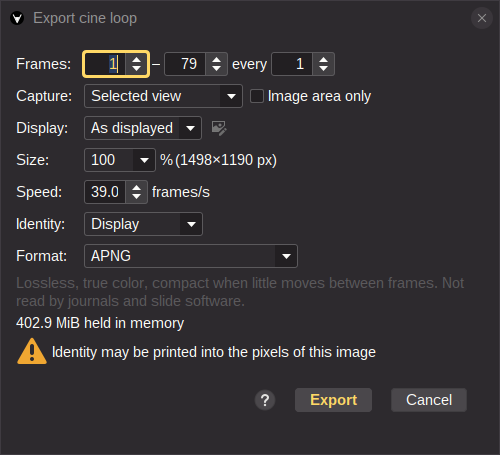
On a multi-frame series — an ultrasound loop, an angiography run, a cardiac cine — Export cine loop writes the frames as one animation.
- Select the view and choose Export cine loop from the Capture button.
- Choose what to capture and how it looks (see Common options).
- Under Frames, set the first and the last frame to export, and keep one frame out of every n to make a lighter file.
- Set the Speed in frames per second; the dialog starts from the playback speed of the loop.
- Pick the Format, then click Export and choose the file.
The name proposed is
cinefollowed by the date and time, with the extension of the format.
Export a 3D rotation
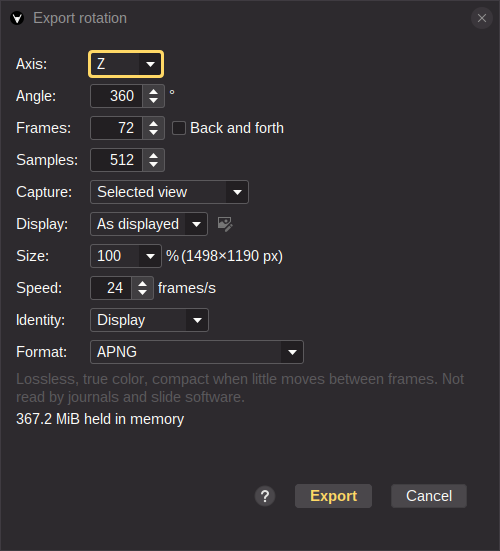
In the 3D viewer, Export rotation turns the volume around one axis and writes the frames.
- Set the rendering as you want it to appear: preset, lighting, clipping, orientation.
- Choose Export rotation from the Capture button.
- Choose the Axis of rotation and the Angle covered: a full turn by default (360°), or a smaller arc — down to 10°, in steps of 10° — for a slower, smoother motion with the same number of frames.
- Set the number of Frames — 72 by default, one every 5° on a full turn, from 4 to 360 — and the Speed, 24 frames per second by default.
- Back and forth plays the arc forward then backward, so the loop has no seam; it is checked automatically when the angle is under 360°, because a one-way partial sweep jumps back to its start.
- With path tracing, set the Samples averaged for every frame, 16 or more in steps of 16: more samples give less noise and a longer export.
- Pick the Format — APNG by default — then click Export.
The file name proposed is
rotationfollowed by the date and time.
The view is put back to its initial orientation when the export ends or is canceled.
Record the viewer
Record the viewer captures what happens on screen, frame by frame, until you stop it or the Max. duration is reached (60 s by default, from 5 s to 600 s in steps of 5 s).
- Choose Record the viewer from the Capture button; the recording captures the Whole layout — or the Application window when no layout is open — at 50 % size and 12 frames per second by default, with the mouse pointer drawn (Show the mouse pointer).
- Click Export and choose the file —
recordingfollowed by the date and time by default — then do what you want to record. - While it runs, the Capture button turns red and shows REC with the elapsed time and the limit. Click it and choose Stop to end the recording.

A message then tells how many frames were recorded over how many seconds. Only one recording can run at a time; a second request is refused until the first one is stopped. A frame identical to the previous one is not stored twice, so a long pause does not inflate the file.
Common options
The animation and recording dialogs share the same form.
- Capture — what the frame contains: the Selected view, the Whole layout (all the views of the tab, with their borders) or the Application window (toolbars, explorer and panels included). For a 2D view, Image area only leaves out the black canvas around the image; a rotated image keeps its bounding box.
- Display — what the view shows in the frames: As displayed, Image only without annotations and graphics, or Custom, where Edit the custom display lets you choose which annotations and layers appear.
- Size — 100 %, 50 % or 25 % of the on-screen size.
- Speed — frames per second, from 1 to 60.
- Identity — the masking profile applied to the frames: Display by default, or Keep identity. When the image may carry identity in its pixels, the dialog shows the notice Identity may be printed into the pixels of this image: redact it with the Redaction Bar first.
- Format — see below.
Under the form, the dialog tells how much memory the animation will hold, or that it is Streamed, no length limit. When the memory limit would be reached, it says after how many frames and seconds the export will stop; reduce the size, the length or the capture area to fit.
Formats
| Format | Best for | Notes |
|---|---|---|
| APNG | renderings in color, 3D rotations | Lossless, true color, compact when little moves between frames. Not read by journals and slide software, which usually want a GIF or a video. Default for 3D rotations and for color images |
| GIF | grayscale loops, slides, e-mails, web pages | 256 colors: exact on grayscale, banding on color renderings. Read everywhere. Default for grayscale cine loops |
| DICOM Secondary Capture | keeping the animation with the study | A multi-frame true-color DICOM object, JPEG compressed, written as a new series of the source study. Import it back into Weasis or send it to a PACS like any other series. Its header follows the Identity choice; the pixels are what the frames show |
The animation plays in a loop without end. APNG and GIF files are limited to 3000 frames and 1 GiB; the DICOM output is streamed and has no such limit.
The DICOM Secondary Capture is a Multi-frame True Color Secondary Capture object with Modality OT, Series Number 99 and Image Type DERIVED\SECONDARY; its frames are JPEG baseline at quality 90 with 4:2:2 chroma subsampling. Burned In Annotation is NO only when the Identity profile hides direct identifiers and the source image is not itself flagged as carrying identity in its pixels; otherwise it is YES.
While the file is written, a progress dialog shows the frames done. Cancel stops the export, deletes the partial file and puts the view back as it was.
Limitations
- The screenshot, the DICOM Secondary Capture and the animated files are produced from the on-screen rendering: the pixel values are not the original ones. To share the images themselves, use the DICOM export.
- A DICOM Secondary Capture written by Weasis is saved to a file; it is not added to the explorer until you import it.
- Recording captures Weasis only, at the frame rate of the dialog; a recording of the whole window on a large screen reaches the memory limit of the animated formats within a few minutes — choose the DICOM format, a smaller size or a shorter duration for long sessions.