This page describes a feature that does not exist in the Weasis version selected in the sidebar.
Identity Masking: Anonymized Display
Show images without showing who the patient is
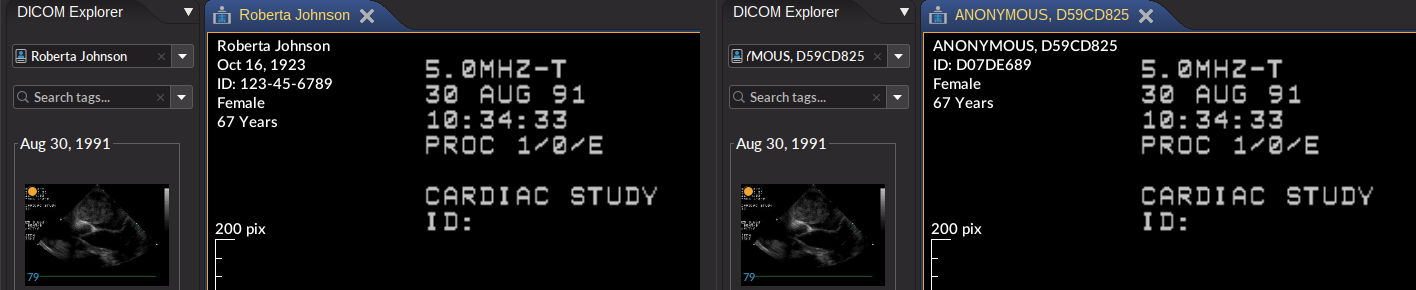
Identity masking replaces the patient identity everywhere Weasis displays it — the explorer, the annotations in the corners of the images, the DICOM attributes, the tab titles — and in every picture Weasis produces: screenshots, prints, image exports and animations. It is made for demonstrations, teaching sessions, presentations and support requests, where the images matter and the patient does not.
It is not a de-identification. The DICOM files themselves never change: what you export or send to another system keeps its original attributes and pixels. To de-identify DICOM data before sharing it, use Karnak. Text that the modality printed into the pixels is not recognized either: you hide it yourself with the Redaction Bar, and you review every image before sharing it.
Turn on the anonymized display
- Open the main menu Tools and check Anonymize displayed data.
- Read the warning dialog: it reminds you that this is not a de-identification, that burned-in text has to be redacted by hand, and that DICOM files exported or sent keep their original attributes.
- Pick the profile in the Identity list — Display is the default — and click OK.
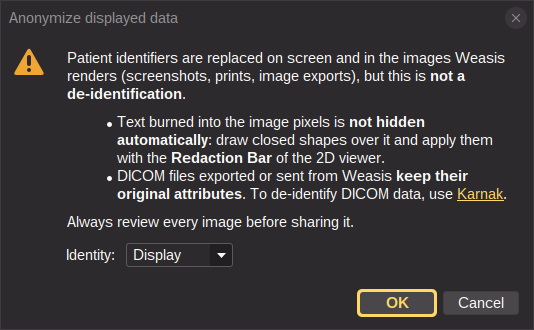
While masking is on:
- a warning badge Anonymized display sits at the right end of the menu bar, followed by the profile name in brackets when it is not Display, for example Anonymized display (Teaching);
- the title of the main window carries the same text, so a screen recording shows at a glance that the identities are not real;
- every selector of the output dialogs starts from the session profile (see Mask the pictures you produce).
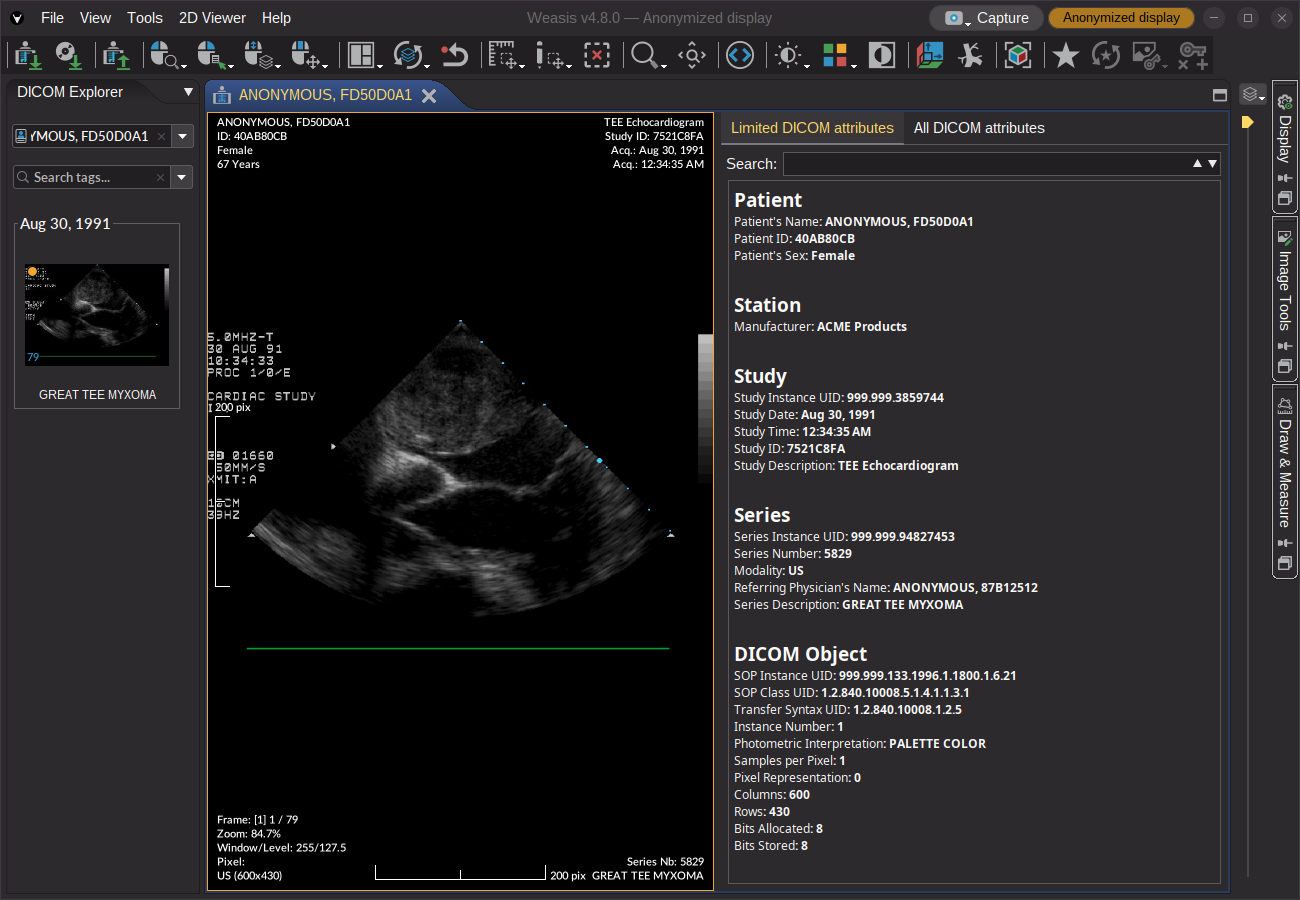
To turn it off, uncheck Anonymize displayed data, or click the badge and choose Turn off anonymization. The real names come back at once.
What is replaced
The same information is masked wherever it is displayed:
- the annotations of the 2D, MPR and 3D views;
- the titles and tooltips of the viewer tabs;
- the DICOM explorer: patient, study and series labels, the selection lists and their tooltips;
- the DICOM attributes panel, both the summary and the full list;
- the header of structured reports and of ECG waveforms, and their printouts.
A name or an identifier becomes a pseudonym: a person name is shown as ANONYMOUS^ followed by eight hexadecimal characters, an identifier as the eight characters alone.
The same value always gives the same pseudonym during a session, so a patient opened in several tabs, or exported several times, keeps one pseudonym everywhere.
Pseudonyms change from one run of Weasis to the next and are never written to disk.
Profiles that shift dates move every date of the session by one random offset between 30 and 329 days, so the interval between two studies of the same patient is preserved — a follow-up still reads as a follow-up.
Profiles
A profile says what each kind of information becomes. Three built-in profiles are offered in the dialogs:
| Profile | Names and identifiers | Dates | Birth date | Institution | Equipment | Descriptions | Free text |
|---|---|---|---|---|---|---|---|
| Display (default) | pseudonym | shown | hidden | pseudonym | shown | shown | hidden |
| Teaching | pseudonym | shifted | hidden | pseudonym | shown | shown | hidden |
| Publication | pseudonym | hidden | hidden | hidden | hidden | shown | hidden |
A fourth profile, AI request, is reserved for the data Weasis sends to remote services and is not offered when producing an image.
Every DICOM attribute belongs to one of these kinds: Direct identifier, Patient characteristic, Date, Birth date, Institution, Equipment, Description, Free text and Other. A profile gives each kind one action — Shown, Pseudonym, Empty, Hidden or Shifted. A kind the profile does not mention is shown as it is. Direct identifiers are never shown as they are: a profile that would keep them is refused.
You can clone a built-in profile and adjust it in the preferences.
Mask the pictures you produce
The dialogs that produce a picture carry an Identity list with the same profiles plus Keep identity. The profile applies only while the picture is rendered: the screen keeps showing what it showed, masked or not.
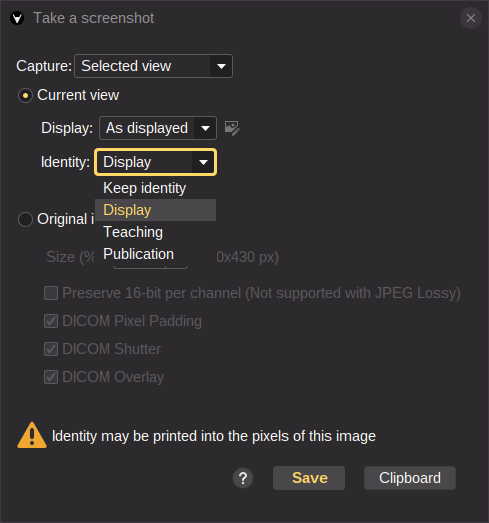
| Dialog | Default when the screen is not masked |
|---|---|
| Take a screenshot of a view, a layout or the window, to a file or to the clipboard | Display |
| Capture: animation export and recording | Display |
| Print and DICOM print | Keep identity |
| Image export of a series (JPEG, PNG, TIFF…) | the last profile you chose |
When the screen is masked, every list starts from the session profile. With an image export that keeps the patient names in its folder names, those folder names are masked too.
DICOM export, DICOM send and CD / ISO export have no Identity list: they write the attributes and the pixels as they are. A key object or a presentation state created by Weasis is also written with the real identity. The one exception is the animation exported as a DICOM Secondary Capture (see Capture): its header follows the Identity list of that dialog.
When the image may carry identity in its pixels — the DICOM attributes Burned In Annotation or Recognizable Visual Features say so, or, when the image carries neither attribute, the modality typically prints text into the image, as ultrasound, angiography and secondary captures do — the dialog shows a notice: Identity may be printed into the pixels of this image. No profile can hide that text; redact it first, then produce the picture again. The notice never blocks the export.
Hide text burned into the pixels
Ultrasound scanners, angiography systems and screen captures often print the patient name and the date into the image itself. The Redaction Bar of the 2D viewer paints over those areas with the surrounding background color. Its controls follow the order of the work: the Redact button, the Image / Series scope, and the Device masks and regions menu.
- With the Draw & Measure tools, draw a closed shape — rectangle, ellipse, polygon, oblique rectangle or circle — over each area to hide, and select the shapes. Lines, angles and text labels are ignored.
- Choose the scope: Image hides the areas on the current image only, Series on every image of the series. Printed text sits at the same place on every frame of a cine loop, so Series is usually the right choice.
- Click Redact. The shapes become redaction regions and the drawings disappear.
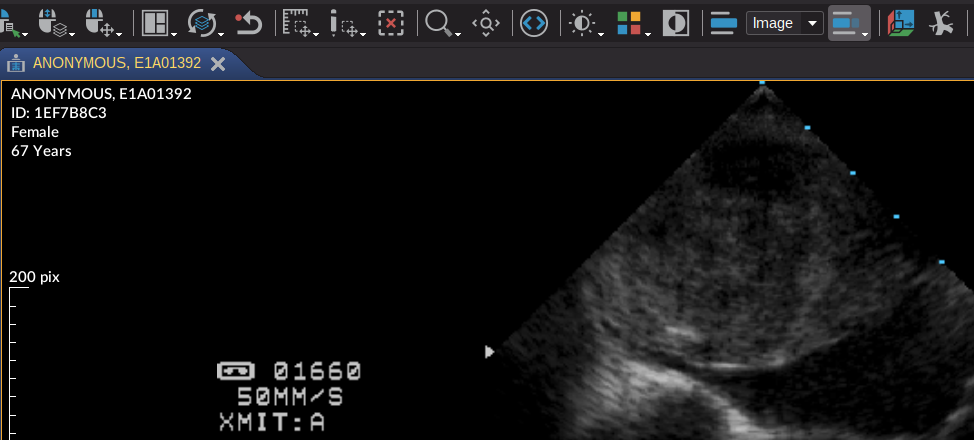
Redactions apply to every view of the series, to its thumbnails in the explorer and in the export dialog, and to every picture produced from it: screenshot, print, image export, animation. They live in memory for the session only, and a DICOM export still writes the original pixels.
While something is hidden on the displayed image, the Device masks and regions button is shown pressed, and its tooltip says by what: Hidden by the device mask “…” or Hidden by drawn regions. To take the regions back, open the menu and choose Remove the regions of this image or Remove the regions of this series, depending on the scope.
Keep the regions for a device
A given scanner prints its text at the same place on every image. Instead of redrawing the regions for each study, save them once for that device:
- Redact an image as above.
- Open the Device masks and regions menu of the Redaction Bar and choose Save these regions for this device…. The dialog Save for this device proposes a Name, lists under Applies to the attributes that identify the device — modality, station name, manufacturer, model, institution — and shows under Drawn on the size of the image the regions were drawn on. The station name and the modality are checked by default; check more attributes to narrow the match, fewer to widen it.
- Give each Region the kind of information it hides, and save.
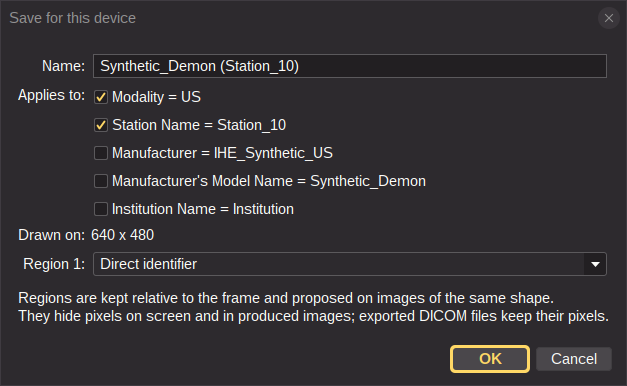
From then on, every image whose attributes match the entry, and whose proportions are the same as the image the regions were drawn on, gets the regions automatically. The Device masks and regions button is then shown pressed, and its tooltip gives the name of the entry. A region is painted only when the profile in force hides that kind of information; with masking off and no picture being produced, nothing is painted. Regions are never stretched to a different image shape: an image with other proportions is left alone.
- The top of the Device masks and regions menu lists the entries that fit the current image, the one in use being checked; pick one by hand to paint all of its regions whatever the profile. The menu reads No device mask fits this image when none applies.
- Remove the regions of this image (or of this series) takes the regions of a device entry away for the session; the entry itself is kept.
- Save these regions for this device… needs at least one region applied, and a series that names a device; it is not available when an administrator has locked the configuration.
- Drawing a shape and clicking Redact over a device mask adds the region to it, to hide something the entry does not cover.
The entries are managed in Preferences > Viewer > Device masks: a table with the Name, the Device key, the number of Regions, where the entry comes From and whether it is Used, a preview of the regions, and the buttons Rename, Delete, Import… and Export….
Export writes either a masking document (JSON) or a Karnak profile (YAML), so that the same regions can be applied by Karnak when the DICOM files are de-identified for good.
A Karnak profile carries only the station name (or *), the image size, the color flag and rectangles: an ellipse or a polygon becomes its bounding rectangle, and the modality, manufacturer, model and institution keys are dropped.
It is computed for the profile of the Session masking: a region whose kind of information that profile keeps is left out, and the message Exported for the profile X tells which one was used.
Import reads both formats.
Preferences
File > Preferences > General > Identity masking has two tabs.
- Profiles — choose a Profile; the built-in ones are read-only, so Clone one to get an editable copy, then set its Name, whether it is Offered when producing an image, and under What each kind of information becomes the action for each kind. A profile shifts dates as soon as one kind or one tag is set to Shifted; there is no separate setting. The menu next to the list imports, exports and deletes profiles. Profiles in force sets the profile of the Session masking and the one used for Remote and AI requests.
- Tag classification — the list of DICOM attributes with the kind of information each one carries and where that classification comes From.
Add a tag or remove one to change how a profile treats it.
A tag is entered as its DICOM keyword (
PatientName), asgggg,eeee@creatorfor a private tag, or asweasis:keywordfor a value Weasis computes itself.
Changes take effect when you click Apply: they are written to identityMasking.json in the preference directory.
Export proposes that same file, and Import reads a document of the same format.
For a site-wide configuration, an administrator can ship a config/identityMasking.json document in the resources package that provides profiles, tag classifications and device masks to every user; its entries are marked (site) in the preference pages and are read-only.
When that document is marked as locked — the key "locked": true at its top level — the user’s own file is ignored.
See Configuration documents for the folder and the merge rules.
Limitations
- The stored data never changes. Masking is a display feature, not a de-identification: use Karnak for that.
- Only the header of a structured report is masked; the content items of the report are shown as they are.
- The DICOM query and the DICOMweb search dialogs always show the real identities.
- Redaction regions are drawn on the original images only; MPR, MIP and curved MPR reconstructions are not redacted.
- The masking state, the pseudonyms and the redactions are not kept between two runs of Weasis, and there is no launch option to start masked.
- Some labels are not masked yet: the patient list of the DICOM send dialog, the labels of key objects and presentation states, and the titles of undocked windows.