Requires Weasis 4.5.0 or later
This page describes a feature that does not exist in the Weasis version selected in the sidebar.
Third-party Launcher
Launching a third-party application
Third-party launchers let Weasis hand off to another application — a different DICOM viewer, a post-processing tool, a custom report system, a web URL — and pass it information from the current Weasis session as command-line parameters, environment variables, or URI query parameters. Typical uses include opening the current study in a secondary viewer, sending the downloaded DICOM folder to a dedicated post-processing software (cardiac analysis, vessel quantification, radiotherapy planning…), calling a clinical report system pre-filled with the patient’s accession number, or launching a vendor tool against the DICOM folder Weasis just downloaded. Available since v4.5.0.
Configured launchers appear in the File > Launcher menu and, optionally, as a button in the toolbar.
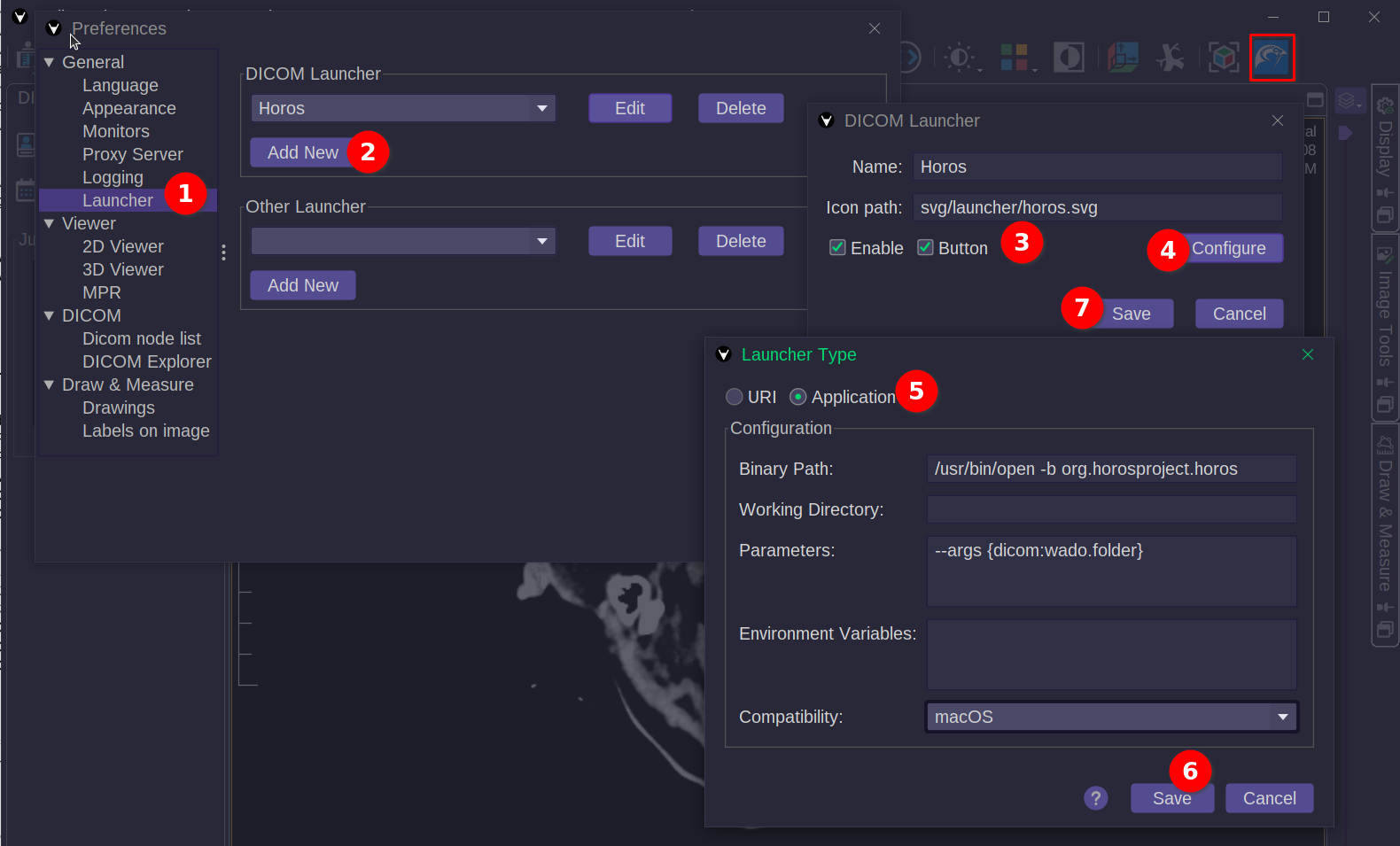
In the screenshot above, a launcher is configured to open the Horos viewer on macOS against the folder where Weasis downloaded the current DICOM files.
How to create the launcher
- From the main menu, open File > Preferences (Alt + P) and select the Launcher item.
- Click Add New to create a new launcher.
- Fill in the general fields of the DICOM Launcher dialog:
- Name — display name of the launcher.
- Icon path — icon shown in the menu and toolbar. Absolute path, or relative to the Weasis resources folder. The default icon is used if the file is not found.
- Enable — show the launcher in the menu and toolbar.
- Button — also show it as a toolbar button.
- Click Configure to specify what the launcher actually does.
- Pick the Launcher Type and fill in its options:
- URI — open a web page or a file at a given URI. The URI may contain dynamic variables below.
- Application — run a local application with parameters. Both Parameters and Environment Variables can contain dynamic variables.
- Binary Path — the executable to run.
- Working Directory — working directory for the process (optional).
- Parameters — command-line parameters, one per line.
- Environment Variables — environment variables, one per line.
- Compatibility — restrict the launcher to specific platforms. Useful when the launcher configuration is pushed from a central server to heterogeneous workstations.
- Click Save in the Launcher Type dialog to persist the launch configuration.
- Click Save in the DICOM Launcher dialog to persist the general settings.
Dynamic variables
The placeholders below are expanded at launch time and can appear in URI, Parameters, or Environment Variables:
| Placeholder | Expands to |
|---|---|
{dicom:wado.folder} |
Temporary folder for images downloaded over WADO and DICOMweb. |
{dicom:last.folder} |
Last folder opened through Local Device in the DICOM Import dialog. |
{dicom:selection.folder} |
Triggers a selection dialog (similar to DICOM Export); the chosen items are copied into a temporary folder that is deleted when Weasis exits. |
{tag:<key>} |
Any DICOM attribute value from the currently selected image, e.g. {tag:AccessionNumber}. |
{pref:<key>} |
Any Weasis preference value, e.g. {pref:weasis.user}. |
Note
The Other Launcher type displays a button on any viewer instead of the global toolbar. For this type, only {pref:<key>} is supported as a dynamic variable.
How to run the launcher
- From the main menu, open File > Launcher and pick the launcher.
- From the toolbar, click the launcher button.
Note
The launcher must be enabled in the preferences to appear in the menu, and the Button option must be checked to appear in the toolbar.