DICOM Explorer
Structure and display of Patients/Studies/Series
DICOM Explorer
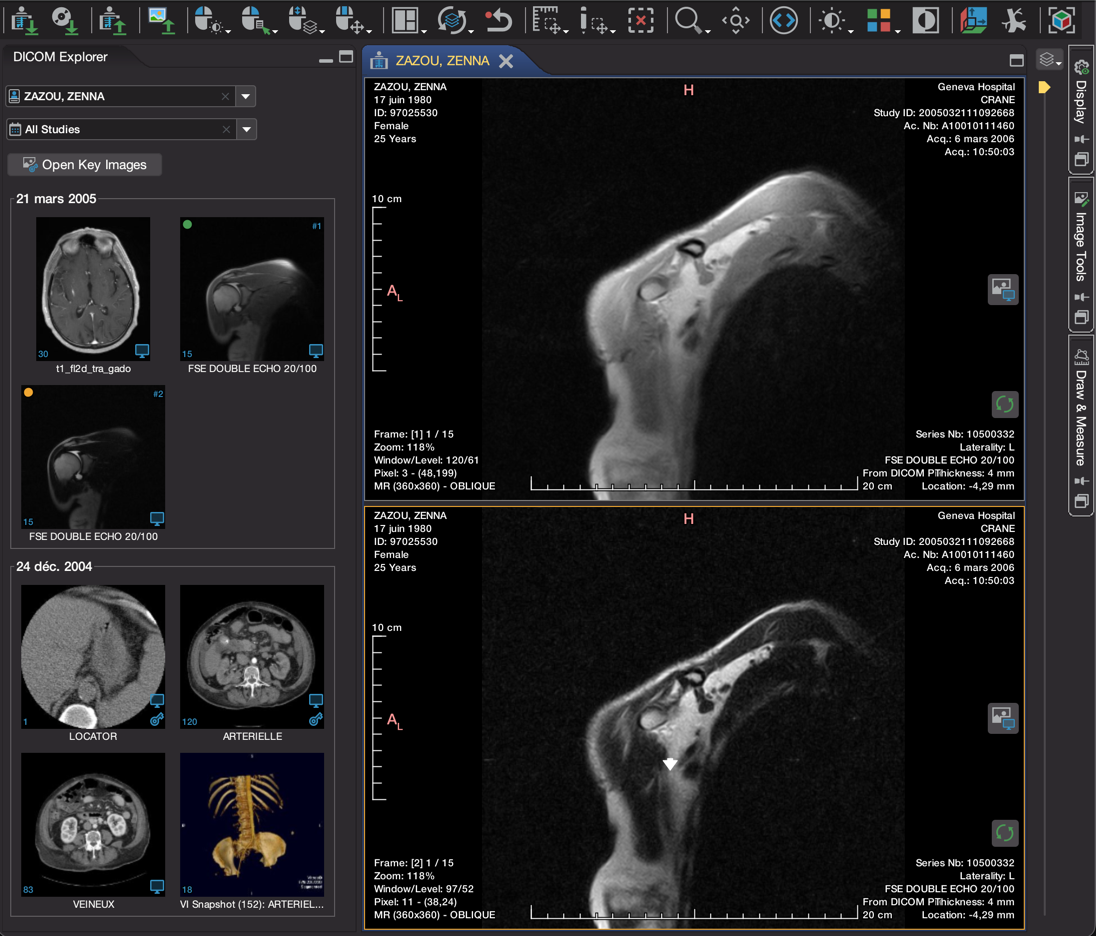
The DICOM Explorer is the panel on the left side of the application. It displays everything you have loaded into Weasis as the Patient / Study / Series / Image hierarchy defined by the DICOM standard, and is the starting point for opening a viewer on any series.
Data can be added to the Explorer in several different ways — drag-and-drop, the import dialog, a PACS query, or the Weasis Protocol.
Tip
You can navigate through the Patient / Study / Series / Image structure using only keyboard shortcuts (the bindings below are the defaults — customizable since v4.7.0). For example:
- Open an image and, if necessary, select the view to focus on. If the layout has more than one view, you can move across the views with Tab and Shift + Tab. The view surrounded by an orange line is the focused view.
- Navigate through images within a series with Up and Down.
- Navigate through series within a study with Left and Right.
- Navigate through studies within a patient with Ctrl + Left and Ctrl + Right.
- Navigate through patients with Ctrl + Up and Ctrl + Down (follow the order in the patient’s combo box and select the last tab if a patient has several tabs already open). To navigate open tabs, use Ctrl + Tab and Ctrl + Shift + Tab.
Patient Level
- Weasis can display several patients at the same time. By default, when images are imported, a tab with the patient’s name opens in the main area.
- A tab containing a multi-view layout can only display images from a single patient.
- You can switch between patients either through the first combobox in the DICOM Explorer (see image above) or by selecting a tab in the main area.
- In the combobox, patients are sorted alphabetically — case-insensitive, and according to the active regional setting.
- The patient combobox is searchable since v4.7.1 — click it and start typing part of a patient name (placeholder Search patient…) to narrow the list to matching patients. To restore the full patient list, click the clear button (✕) on the right of the field, then open the combo to select a patient.
- Studies and series are grouped under the same patient when their Patient Name and Patient ID both match. Otherwise, a new patient entry is created.
Study Level
- A study contains one or more series (thumbnails) that belong to a single patient. A surrounding line groups the series of one study (see the image above).
- Studies are sorted in reverse chronological order by default. The sort order can be changed since v4.1.0 in File > Preferences > DICOM > DICOM Explorer under Study data sorting. If a study has no study date, it is sorted alphabetically by Study Description.
- All studies are shown by default; the study combobox can restrict the view to a single one.
Series Level
- A series is represented by a thumbnail with the image count shown in the bottom-left corner. Icons in the lower-right corner indicate the objects that explicitly reference this series — Key Object Selection, Presentation State, Segmentation or RT objects. A missing icon does not always mean the object is unusable with this series: a segmentation is also displayable on any series sharing its Frame of Reference UID.
- According to predefined rules, some series are split into sub-series — also represented as thumbnails, identified by a
#number in the upper-right corner. Splitting is needed for the consistency of tools such as the MPR viewer, MIP, the 3D cursor (cross-lines) and view synchronization. When the split is not desired, sub-series can be re-merged from the context menu.
Tip
Select related Series — right-click a series and choose Select related Series to highlight every series in the study that shares its Frame of Reference UID (the DICOM coordinate system). Open them together (right-click again → 2D Viewer > Open) to get cross-coupled views that auto-synchronize and that the 3D cursor can drive.
Tip
Series built inside Weasis — the MPR viewer (Build a new series from the current view / Build three series from MPR views) and the MIP viewer (Build a new Series) can add reconstructed series back into the Explorer. These newly built series join the current study and can be opened, sent, or exported like any other series.
Filtering the series list
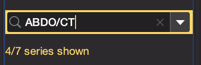
A search field above the thumbnail list narrows the series shown for the currently selected patient since v4.7.1. The small button on the left of the field selects one of three exclusive filter modes — click it to switch (its tooltip reads Filter mode: … (click to change)). A counter next to the field reports how many series pass the filter (shown / total series shown).
| Mode | What it does |
|---|---|
| Full text | Type any text to match the series Description, Modality, Body Part Examined, Protocol Name and Series Number, as well as the parent study’s Description, Study ID and Accession Number. You can also open the combo to pick an existing Series Description or Study Description directly — they are also suggested as you type. |
| Study date | Pick a single study — listed by date — to show only its series, or choose All studies to remove the restriction. |
| Modality | Pick one or more modalities (e.g. CT, MR) from the suggestions to show only the matching series. |
Each patient keeps its own filter: switching patients restores the filter last used for that patient. Because only one mode is active at a time, changing the mode clears the current criterion.
To show the full series list again, click the clear button (✕) on the right of the field to reset the search, then open the combo to pick from all entries.
Tip
The mode selected when a patient is opened for the first time can be changed since v4.7.2 with Default series filter in File > Preferences > DICOM Explorer, or set for everyone with the preference weasis.dicom.explorer.filter.mode (TEXT, DATE or MODALITY).
4D Series Sub-Series Splitting
When a DICOM series is loaded, Weasis automatically analyzes it to detect multi-phase acquisitions (e.g. cardiac phases, contrast phases, 4D volumes). If multiple phases are detected, the series is split — automatically or with a confirmation step — into separate sub-series, one per phase since v4.6.2. Each sub-series can then be used independently in the MPR, MIP, or 3D Volume Renderer.
Splitting behavior by number of detected phases
| Phases | Behavior |
|---|---|
| 1 | No split — treated as a standard single-phase series. |
| 2 – 7 | Automatic split — the series is immediately divided into one sub-series per phase, without any user interaction. |
| ≥ 8 | Manual split — Weasis stores the phase count but leaves the series intact. A confirmation dialog is shown before splitting to prevent unintended fragmentation of large datasets. |
Manual split confirmation dialog (≥ 8 phases)
When 8 or more phases are detected, a dialog asks you to confirm the split. Once confirmed, the series is divided exactly as in the automatic case. Canceling leaves the series intact as a single entry in the DICOM Explorer.
Sub-series structure after splitting
After splitting, each phase becomes a separate thumbnail in the DICOM Explorer. The first sub-series reuses the original series entry; the additional sub-series are added to the study tree, identified by a # number in the upper-right corner of the thumbnail.
Tip
If the split is not needed, or was triggered unintentionally, the sub-series can be merged back. Select the thumbnails you want to merge (all or a subset) and choose Merge Selected Series from the context menu — the selected sub-series are recombined into a single series entry.
Note
Phase detection is based on the spatial position of each image. If multiple images share the same slice position, they are assumed to belong to different temporal phases. If no such overlap is found, the series is treated as a standard single-phase acquisition and is never split.
Series Display and Opening
- By default, series are sorted by series number; if that is missing, they are sorted chronologically by series date or another available date.
- To open a series:
- Drag and drop a thumbnail into the main area. If the drop lands in a view of the same patient, that view’s series is replaced; otherwise, a new tab is created.
- Double-click a thumbnail (or navigate with the Up / Down arrows and press Return). If a view of the same patient already exists, the series in the focused view (orange border) is replaced.
- Select one or more thumbnails and pick an action from the 2D DICOM Viewer context menu:
- Open — opens the series in the most appropriate layout (replaces the series if a patient tab already exists).
- Open in new tab — same, but always in a new tab.
- Open in screen — same, but on a specific screen.
- Add — appends the series to the current patient’s layout, if one exists.
Note
Tab opening and focus behavior is handled automatically since v4.7.0, replacing the old configurable opening mode preference.
When is a new tab opened? A new viewer tab is opened for every patient whose studies are loaded via an import action. If the patient already has an open tab, the new studies are added to that existing tab instead of opening a new one. This keeps each patient organized in a single tab and prevents fragmentation of the workspace.
How is focus managed? Focus follows an automatic policy based on loading duration:
- If the study finishes loading quickly (within ~3 seconds), the new tab comes to the foreground — the expected behavior for a direct open action.
- If the study is still loading when the threshold is exceeded (for example a slow network import in the background), the current tab keeps focus — Weasis will not interrupt your work by stealing focus for a slow background load.
In practice: fast loads surface immediately, slow background loads stay out of the way.
Preferences
From the main menu File > Preferences > DICOM > DICOM Explorer:
- Thumbnail size — width of the thumbnails; the panel adjusts accordingly. Default: 144. Restart the application after changing this value.
- Study data sorting — sorts studies in reverse chronological order (default) or chronological order since v4.1.0.
- Download all series immediately — when checked, series start downloading as soon as they are queued via WADO or WADO-RS. When unchecked, you must click the play button on each series, or the global play button at the bottom of the thumbnail list. Default: checked.