Import DICOM Files, CDs and Archives
Every source Weasis can read data from
Weasis can ingest DICOM data from many sources:
- Drag and drop files, folders, or DICOM ZIP archives from the system file explorer.
- Double-click a DICOM file in the system file explorer (file association).
- Local Device — browse files, folders, or DICOM ZIP archives from inside Weasis.
- DICOMDIR — load a DICOM CD/DVD or any folder that contains a DICOMDIR index.
- DICOM Query/Retrieve — query a remote PACS over classic DICOM (C-FIND / C-MOVE / C-GET) or DICOMweb (QIDO / WADO-RS) and retrieve selected studies.
- Commands — local or remote commands launching Weasis with a target series (see the Weasis Protocol).
To send data the other way — out of Weasis to a file, a PACS node, or a CD/DVD — see DICOM Export.
Note
Whatever the import method, a popup may appear at the end of an import in any of these cases:
- Error since v4.3.0 — one or more DICOM files cannot be read because they are corrupted or malformed.
- Information since v4.7.0 — one or more valid DICOM files were skipped because their SOP Class has no viewer available (e.g. Raw Data Storage). These files are not corrupted, they are simply not displayable. The notification can be silenced with the Don’t show this again checkbox in the dialog, or from the DICOM Explorer preferences (Notify when DICOM files with an unsupported SOP Class are skipped).
- Network error — when a network error occurs during a retrieve (DICOMweb or WADO), a message offers to download the missing files again.
From the system file explorer
Drag and drop
Files, folders, or DICOM ZIP archives selected in the system file explorer can be opened by dragging and dropping them into the central area of Weasis. The accepted drop target depends on the central panel state:
- Empty central panel — any file a Weasis viewer can open, including standard images such as TIFF, PNG, and JPEG.
- DICOM Explorer or any DICOM viewer (2D, MPR, 3D, SR, AU…) — only DICOM files and DICOM ZIP archives. Weasis opens each series in the most appropriate viewer.
File association
DICOM files can be opened by double-clicking them from the system file explorer.
Note
On Windows, only files with the .dcm extension are associated with Weasis. On other operating systems, DICOM files without an extension are also associated with Weasis.
From the Weasis menu or toolbar
Two import entry points sit next to each other in the toolbar (and under File > Import in the main menu):
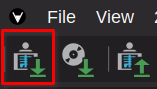
- The first button opens the standard DICOM import dialog described below (File > Import > DICOM).
- The second button is a shortcut for the DICOMDIR / CD-ROM workflow (File > Import > DICOM CD).
Local Device
DICOM ZIP is also accepted in the local-import workflow since v4.7.0:
- Files — browse and select one or more DICOM files or DICOM ZIP archives via the file chooser. If a ZIP archive is password-protected, a password prompt is shown.
- Folders — browse and select one or more folders via the file chooser. Folders containing DICOM ZIP archives are also supported.
- Search recursively — when enabled, the import also descends into subdirectories.
DICOMDIR
Loads a DICOMDIR-based study from a CD/DVD or any folder that already contains a DICOMDIR index file:
- Path — browse to a folder containing a DICOMDIR.
- Detect CD-ROM — try to load a DICOM CD/DVD directly.
- Copy images into the local temporary directory — useful for slow reading devices such as CD-ROM drives.
DICOM Query/Retrieve
Queries a remote PACS and retrieves the selected studies or series into the DICOM Explorer. The dialog has two tabs — DICOM Source and Search Criteria.
DICOM Source tab
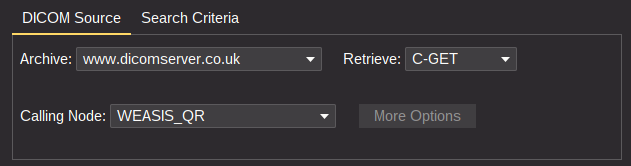
-
Archive — pick the remote node to query:
- DICOM nodes — classic DIMSE (C-FIND for the query, plus C-MOVE, C-GET, or WADO-URI for retrieval).
- DICOMweb nodes — QIDO for the query, WADO-RS for the retrieval (no additional options needed).
-
Retrieve (DICOM archives only) — the protocol used to transfer the images:
- C-MOVE — the classic DIMSE retrieve. Accepts all SOP Classes but is not recommended over the web.
- C-GET — transfer syntaxes are negotiated per SOP Class through a configuration file.
- WADO-URI — C-FIND for the query plus WADO-URI retrieve; requires a WADO server.
C-MOVE and C-GET are also tracked in the Download Manager since v4.7.3 and can be stopped and resumed series by series, as WADO-URI and DICOMweb nodes already were (see Download progress, stop and resume).
-
Calling Node (DICOM archives only) — pick the calling DICOM node that matches the remote AE.
-
Charset (DICOM archives only) — the character set announced to the archive in the C-FIND request, as the DICOM Specific Character Set attribute. It tells the archive how the text you typed is encoded and how it should encode the names it sends back. ISO_IR 192 (UTF-8) is the default and works with practically every modern archive; change it only for an older archive that answers in its own local encoding — the list covers ASCII, the Latin, Cyrillic, Greek, Arabic, Hebrew and Turkish alphabets, Thai, the Japanese and Korean sets, and Chinese GB2312 / GB18030. The choice is remembered for the next query since v4.6.0.
-
More options — opens the preferences so you can add or edit DICOM nodes.
Search Criteria tab
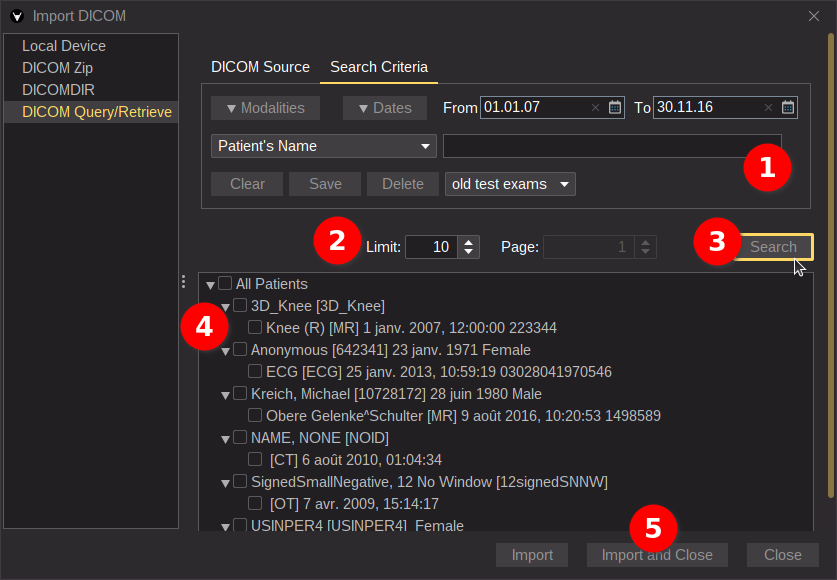
- Narrow the query by study date with the date drop-down: All dates (no date filter), a single day such as Today, Yesterday or Day before yesterday, a current period (This week, This month, This year), or a rolling window (Last 24 hours, Last week, Last month, Last year…). Choosing one fills in the start and end dates; either can then be adjusted on its own, and clicking a date field opens a calendar to pick an exact day since v4.7.0.
- Pick a pre-registered search (combo box at the bottom-right of the Search Criteria panel) or fill in your own criteria. Saved criteria can be reused later; since v4.1.0 the item selected in the combo box is re-applied automatically the next time the window opens (the default is Empty).
- Adjust the limit — the maximum number of studies returned by the query. Set the limit to 0 to remove the cap. For DICOMweb, the limit is the page size; use the spinner buttons to move between pages.
- Click Search.
- Select what you want to import in the result tree (see below).
- Click Import and close the window.
Choosing the retrieve level
The query result is a tree with a checkbox on every node. It has a series level below each study since v4.7.3: expanding a study lists the series returned by the archive — modality, series number, description and number of images — so the retrieve no longer has to be an all-or-nothing study transfer. The series of a study are queried the first time it is expanded, and kept as long as the result is displayed.
- Checking a study retrieves all of its series — this is the previous behavior and remains the default.
- Expanding a study and checking only some series restricts the transfer to those series. The retrieve is then requested at the SERIES level instead of the STUDY level, so the archive sends only what was selected.
Selecting fewer series is the most effective way to shorten a retrieve from a large study, and it also keeps the local cache smaller.
When the transfer starts
A retrieve no longer inspects the whole selection before the first image arrives since v4.7.3. Weasis asks the archive for the series of a selected study, queues one download per series and starts transferring, while the remaining studies of the selection are still being queried.
The content of a series is not listed up front either:
- C-MOVE, C-GET and DICOMweb request each series as a whole and let the archive send what it holds. The number of images announced by the series query is enough to fill the progress bar.
- WADO-URI transfers the images one by one, so it has to list them first. That query is made when the series is about to be downloaded, and for that series only.
A resumed series is the exception: whatever the protocol, Weasis then lists the images of that series so that it can ask only for the ones still missing.
On a selection of several large studies this replaces a long silent preparation with a download that starts right away. In exchange, the thumbnail of a series appears with its first images instead of before the download — except with DICOMweb nodes, where the archive’s series thumbnail service gives a preview straight away when it implements one.
Download progress, stop and resume
Note
Every retrieve type — C-MOVE, C-GET, WADO-URI and DICOMweb (QIDO / WADO-RS) — is tracked series by series since v4.7.3, and each series can be stopped and resumed individually. Before that version, progress tracking and pausing were available only with DICOMweb nodes and with the combination DICOM C-FIND + WADO-URI.
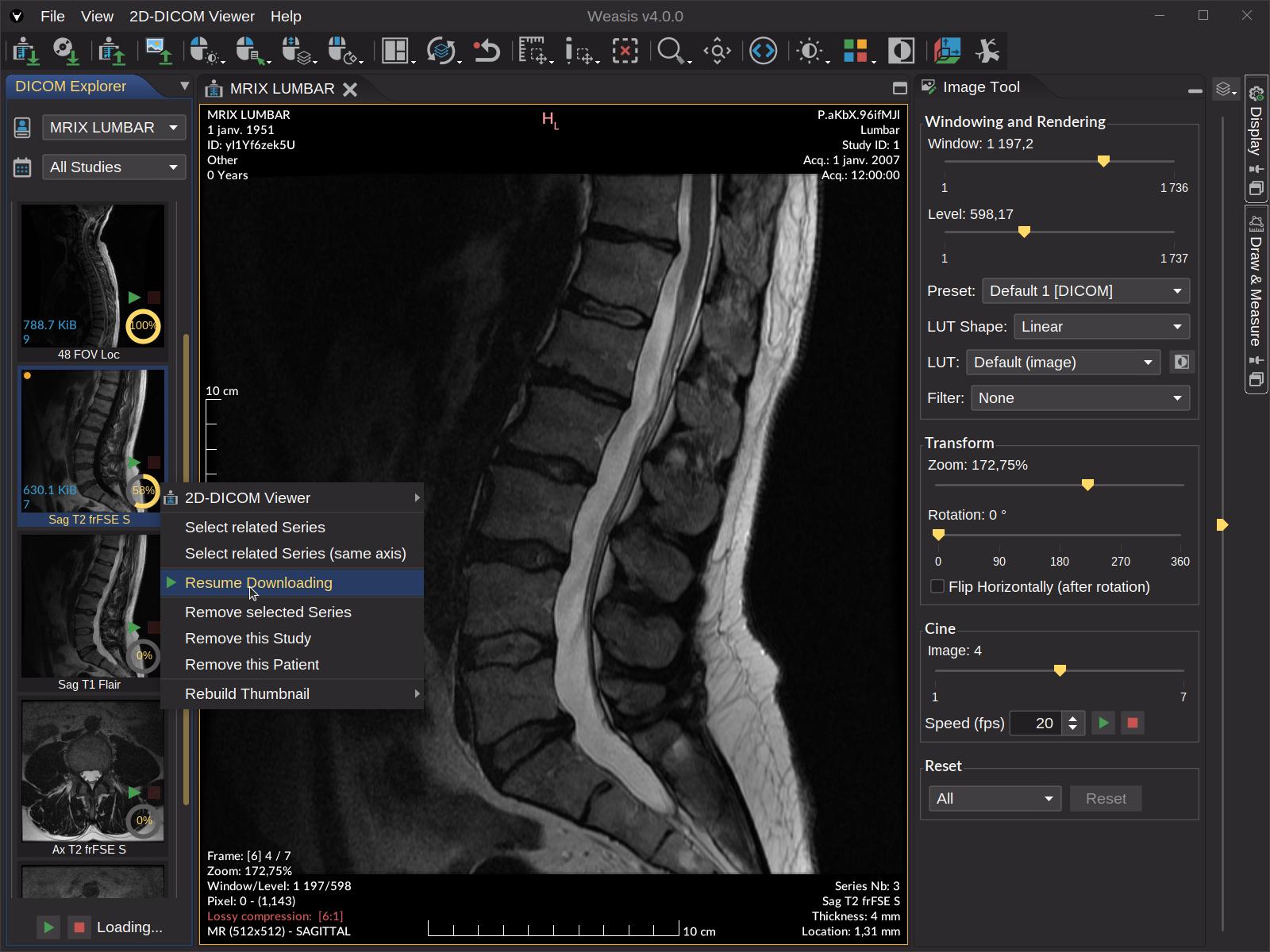
- Every series carries its own progress bar, filled according to the number of instances already received.
- Stop Downloading and Resume Downloading are available in the right-click menu of a series, and on the button in front of its progress bar. A stopped series is restarted with the green play button.
- Stop All and Resume All are the two buttons at the bottom of the DICOM Explorer panel. They apply to the whole download queue at once.
- Stopping loses nothing: the instances already received are kept, and resuming asks only for the missing ones instead of transferring the series again from the beginning.
Selecting a thumbnail downloads that series first
Weasis transfers only a few series at a time and leaves the others waiting in a queue, in the order in which they were requested. Clicking the thumbnail of a series that is still waiting makes it the next one to arrive:
- the selected series is moved to the front of the queue;
- one of the series currently being transferred is stopped and put back in the queue, which frees a slot;
- the selected series starts downloading immediately in that slot.
The interrupted series loses neither its place in the queue nor the images it had already received: it resumes from where it stopped as soon as a slot is free again. Selecting a series that is already being transferred, or one that is complete, changes nothing.
This is what makes a large retrieve usable: instead of waiting for the whole study, click the series you want to read and it is transferred first, while the rest keeps downloading in the background.
Warning
Stopping a C-MOVE or C-GET retrieve asks the remote archive to cancel the transfer. Some archives take a while to react, so a few more images may still arrive after the stop; Weasis closes the association once the cancel has been sent instead of waiting for the archive to finish.
Tip
If a query runs for too long, click Clear in the Search Criteria panel to cancel the request.
When using a DICOMweb node, an external login may be required (for instance signing in to a Google account in your web browser). If the login fails, Weasis can freeze for up to a minute waiting for the authorization code.
From commands
Weasis can be started — or asked to load a specific study — through commands launched locally or remotely. See Examples to load images on the Weasis Protocol page.